We are excited to introduce Dashboard 2.0, a new unified visibility experience for managers and staff across all properties.
Goal:
Dashboard 2.0 provides real-time operational snapshots, giving managers instant awareness of what's happening across their properties right now.
- Key objectives: Consolidated dashboard with key metrics from all properties, with built-in filters to switch between them
- Real-Time Status Snapshots: Focused on current operational status
- Cross-Property and Employee Comparison: Compare employee performance within a single property using filtering capabilities
- Access Control Management: Managers can grant or remove dashboard access on a per-user basis
Giving Access
A Manager (at the company level) can grant or remove dashboard access by editing the employee record in the system.
- Any employee type can be given access for V1
- Access is granted per dashboard type (e.g., Manager Dashboard, Accounting Dashboard)
- If a user is not given access to a dashboard, they will not see the option to view it
- Default filters will show all employees
Users navigate between the following dashboard pages:
- Overview
- Requests
- Payables
Benefits:
Managers have full control over who sees what. By granting access only to the relevant dashboards, organizations ensure that sensitive operational data stays in the right hands; reducing information overload for staff and protecting data confidentiality across the company.
Types of Dashboards in V1
Manager Dashboard:
Related to staff and operations across all properties. Staff Management is pre-filtered by the user to see which operations are due
- Overview of operations by group/individual per property. Can select one or multiple properties. Can filter by group of employees.
Benefit for users:
- Having specialized dashboards means each user sees a view relevant to their role — managers get staff performance insights, while all users get a clean property-level overview without clutter or irrelevant data.
Service Level Settings (SLS):
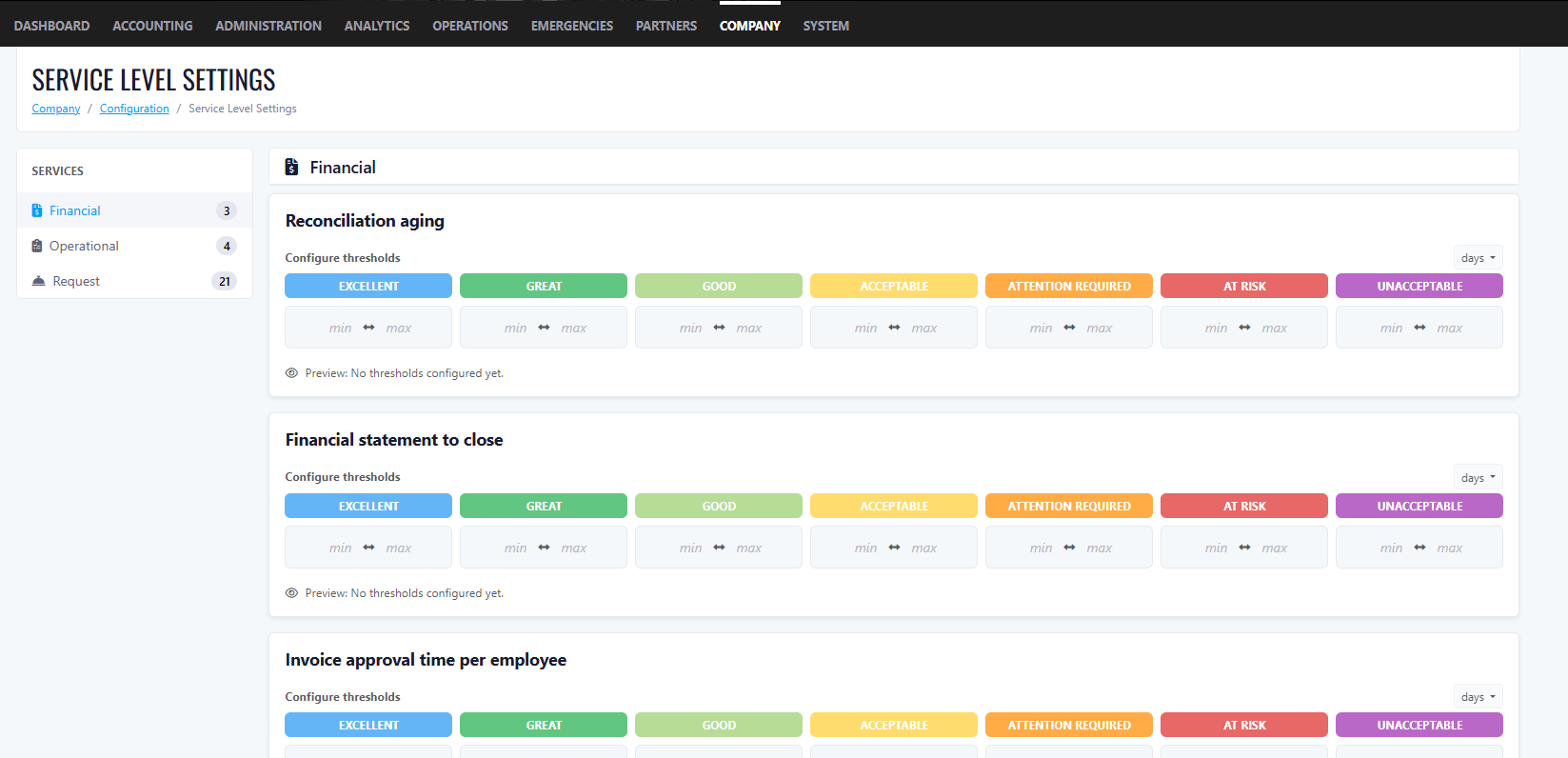
Service Level Settings allow the company to configure performance thresholds for key metrics on the dashboard.
- Values apply across all properties (universal settings)
- Values are numbers only. Units are Days or QTY; no letters allowed.
- The Company Owner must configure values from the configuration page
- Not all dashboard metrics require SLS numbers.
- If no SLS values are configured on first login, the dashboard will still display data but with only 1 colour
- Users can have a 0 value between ranges.
Benefit for users:
SLS thresholds turn raw numbers into meaningful, color-coded signals. Instead of manually interpreting data, managers can instantly see whether a metric is Excellent, Fair, or Critical — making it much easier to prioritize actions and hold teams accountable to consistent standards across all properties.
Overview Dashboard:
Default for all users.
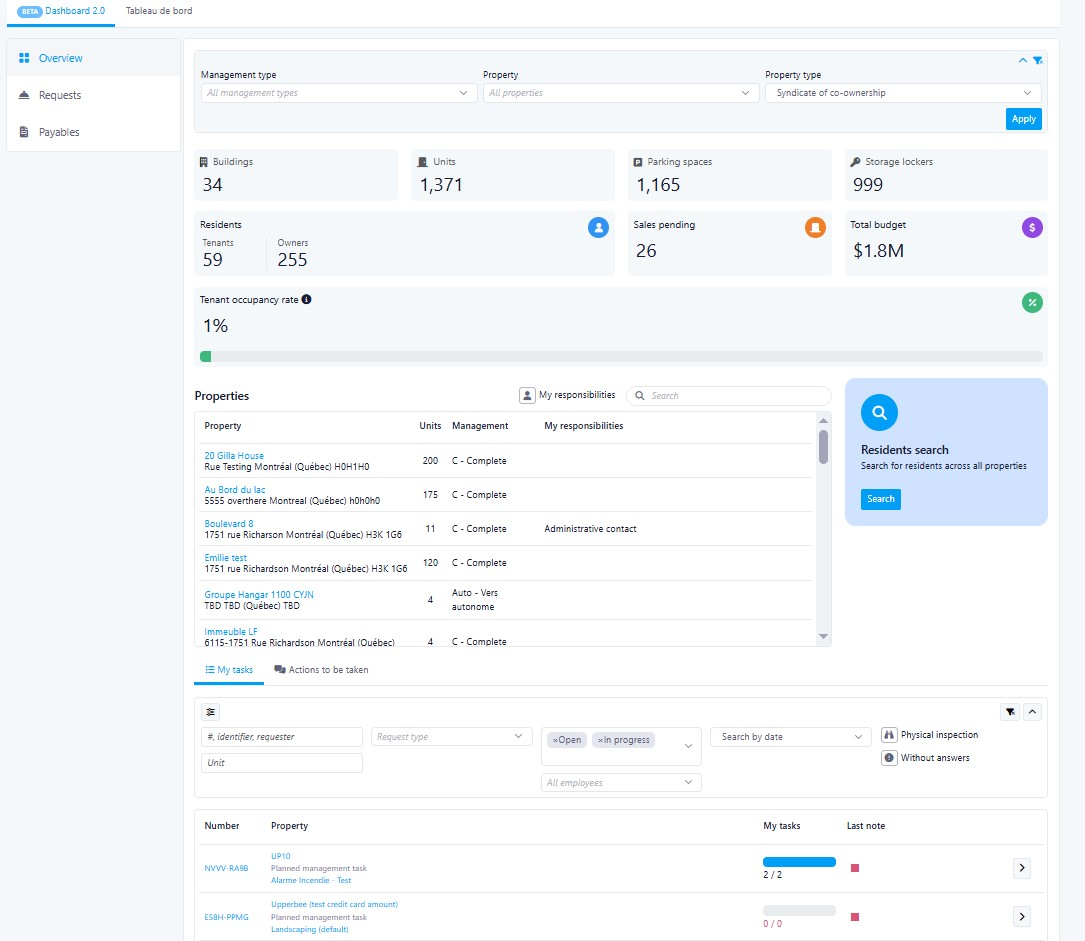
- Users can filter by Property, which dynamically updates all numbers. Default shows all buildings.
Benefit for users:
This is the first screen every user lands on, giving an immediate, company-wide pulse check. No setup required.
Users get instant visibility into occupancy, unit counts, tenants, and their personal task list the moment they log in.
Filter Options:
- Filter by Property: Shows all properties by default; updates numbers on selection.
- Filter by Property Type: Condo or Rental
Rental KPIs (Boxes):
- Number of active buildings / units / parking / lockers (updates with property filter)
- Number of tenants (updates with property filter)
- Units for Rent (updates with property filter)
- Average unit rent (updates with property filter)
- Occupancy Rate: % of units with tenants
Condo KPIs (Boxes)
- Number of active buildings / units / parking / lockers (updates with property filter)
- Number of tenants vs owners (updates with property filter)
- Units for sale (updates with property filter)
- Average condo fee monthly (updates with property filter)
- Occupancy Rate: % of units rented
Benefit for users:
KPI boxes update dynamically when filtering by property or property type, meaning managers no longer need to run separate reports for each building. A portfolio manager overseeing both Condo and Rental properties gets the right KPIs for each context in a single click.
Bottom of Page (Both Rental & Condo):
- Properties table: Property Name, # of Units, Type, My Responsibilities. Filterable by "My Responsibilities" toggle.
- Search Residents: Search across all properties; results redirect to the resident page.
- My Tasks / Task & Actions: List of open tasks and action items.
Benefit for users:
The "My Responsibilities" filter lets staff focus only on the properties they manage, reducing noise. The Resident Search consolidates a previously multi-step process; users can now find any resident across all properties from one central location. The My Tasks section ensures nothing falls through the cracks by surfacing pending items directly on the home screen.
Manager Dashboard:
This dashboard replaces the need to manually compile performance data from multiple reports. Managers get a live, filterable view of workload distribution, ticket backlogs, and invoice delays across their team, enabling proactive management and fair performance reviews.
Filters:
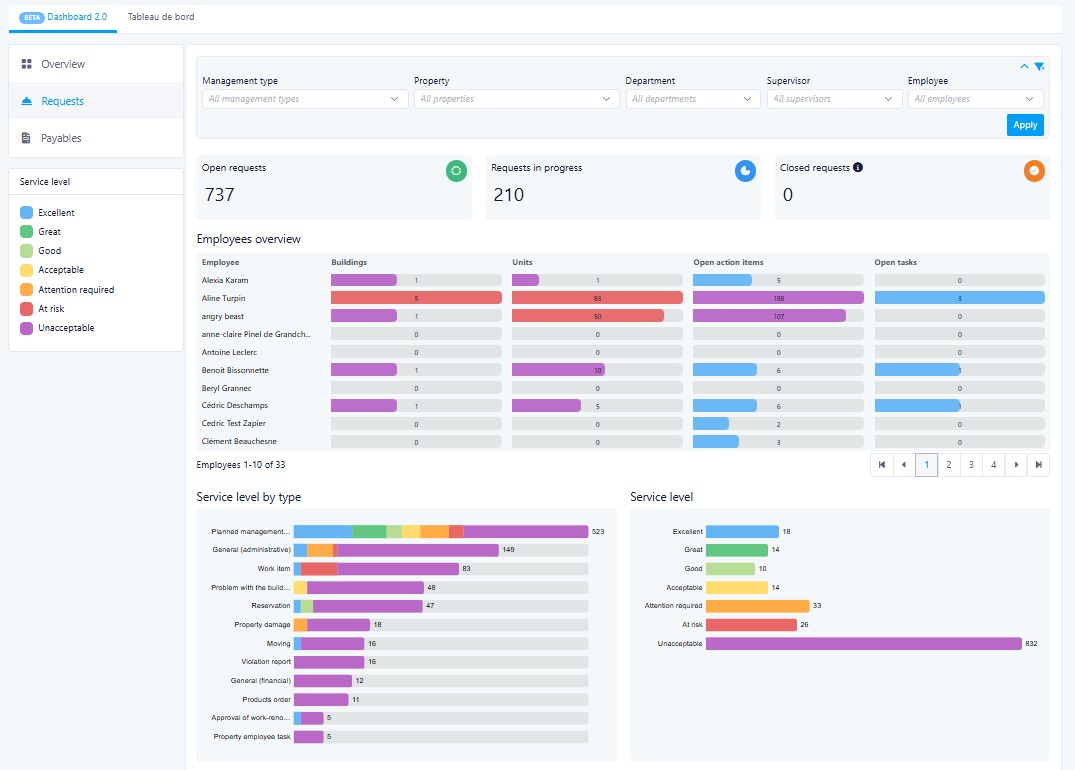
- Supervisor: Select specific employees (multi-select) or all team members under a supervisor.
- Property: Select all or multi-select. Includes Management Type filter.
Benefit for users:
Multi-select filters give managers the flexibility to zoom in on a single employee, a specific team, or compare across the entire company, without leaving the dashboard or running separate queries.
KPI Boxes:
- Total Number of Open Tickets (new tickets with no status update, not closed)
- Total Number of In Progress Tickets
- Total Number of Closed Tickets
Benefit for users:
At a glance, managers can assess the overall health of their operations. A high number of open tickets with no status update signals stalled work and lets managers intervene quickly before issues escalate.
Metrics:
- Number of buildings managed by employee: Primary property manager; list of employees with number of properties.
This quickly identify if workloads are unevenly distributed — helping managers rebalance responsibilities and prevent burnout.
- Number of units per employee: Primary managed units.
This provides a clearer picture of each employee's operational footprint, making capacity planning easier and more objective.
- Action Items: Number of open action items per employee (excludes Closed)
Managers can see who has a growing backlog of unresolved items and follow up before deadlines are missed.
- Task Items: Number of open tasks per employee by days (excludes Closed)
Tracking tasks by days open highlights aging items. This helps managers prioritize escalations.
- Open Ticket By Status: Graph displaying ticket statuses (excludes Closed).
Shows total ticket count and status breakdown by ticket type (Admin, Common Area, Financial, etc.), helping managers spot which service categories are most overloaded, enabling smarter resource allocation.
- Open Ticket Status By Employee: Graph by employee showing total tickets and status (excludes Closed).
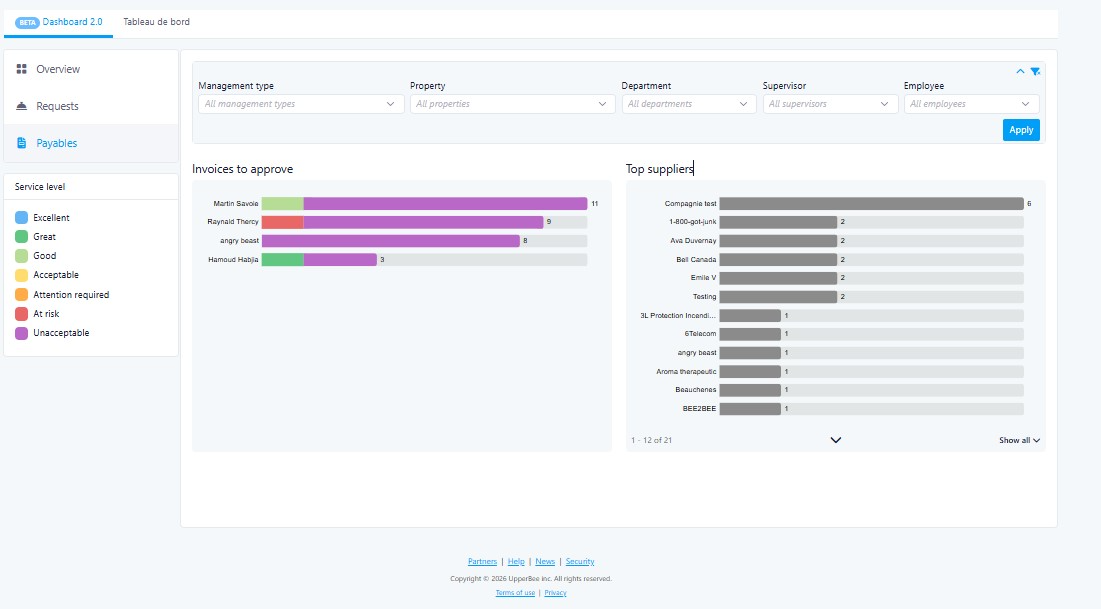
- Invoices to Approve: Broken down by days outstanding. Tabs: Time to Approve / Top Suppliers.
Highlighting invoices by how long they've been waiting for approval helps managers prevent late payment penalties and maintain healthy supplier relationships. The Top Suppliers tab adds context on which vendors generate the most invoice volume.
Was this article helpful?
That’s Great!
Thank you for your feedback
Sorry! We couldn't be helpful
Thank you for your feedback
Feedback sent
We appreciate your effort and will try to fix the article