
Release Notes
Release week 2026-02-07
New Features
-
Security Deposit for Reservations
What's New:
- Displays unit information
- Displays check in and checkout dates
- Breakdown section showing:
- Guest Charge
- Security Deposit
- Total Amount
- Transaction Notice
- Not Applicable
- Deposit was never taken on the reservation.
- Deposit Not Refunded
- Deposit Refund Due
- Reservation has been completed
- Automatically changes from "Deposit Not Refunded" when the reservation end date passes
- Deposit Refunded
- Keep Deposit
- Manager has decided to retain the deposit
- Partial Refund
- Allows claiming only a certain amount
-
Archive Multiple Documents
Overview
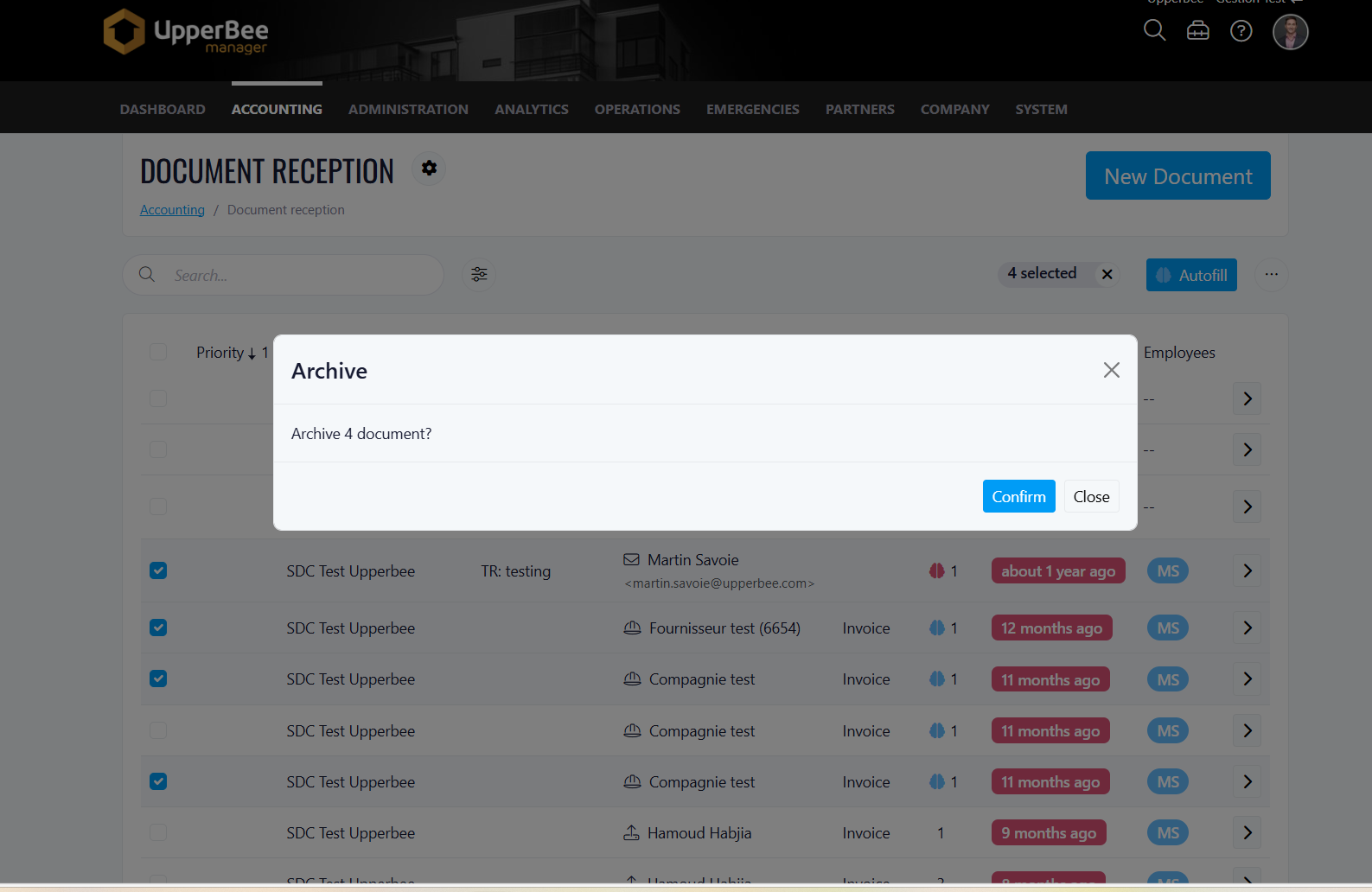
Details
- Multiple document selection is now supported.
- A new Archive option is available when multiple documents are selected.
- Users can archive multiple documents:
- from the Document Reception page
- from the Index page
- Archived documents are removed from the active list and can be accessed from the Archived section.
Benefits
- Faster document management.
- Fewer repetitive actions.
- Improved and more consistent user experience.
-
Draft Message Visibility Update
Overview
What’s Changed
- Draft messages are now visible only to the user who created them.
- Drafts will no longer appear in the Draft folders of other managers, even if they are selected as recipients.
- Managers will only see messages once they are sent.
Benefits
- Saving a message creates a draft only in the creator’s Draft folder.
- Draft items are private and cannot be viewed by other users.
- Messages become visible to recipients only after being sent.
Improvements
-
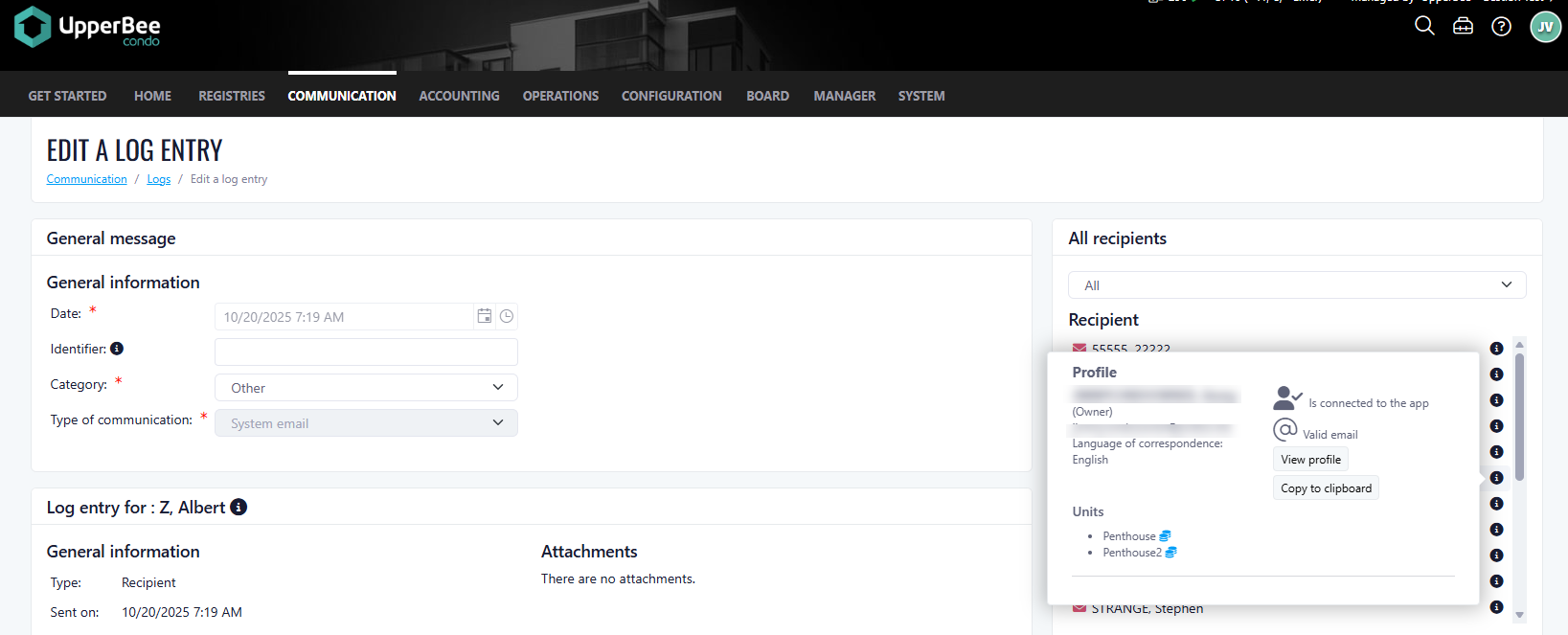
Recipient Information Tooltip
Overview
- Full name
- Email address
- Preferred language
- Associated unit(s)
- Copy recipient information to your clipboard
- Access the recipient’s profile via a direct link
- See whether the recipient is currently connected to the app (when available)
Benefits
-
Hide Accounts Without Balance
Overview
Details
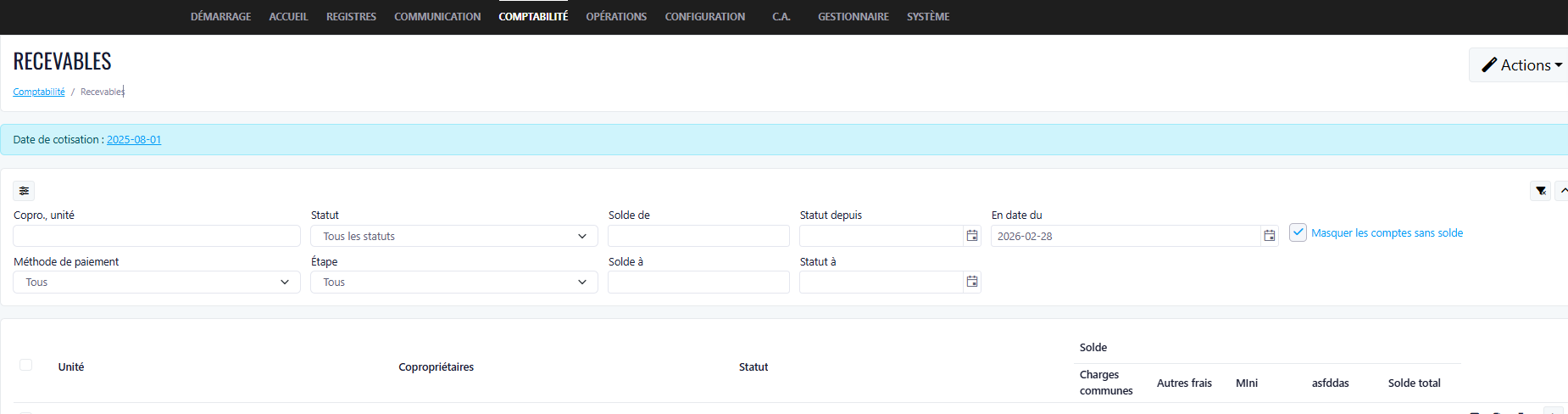
- Added a “Hide accounts without balance” filter.
- When enabled, accounts with a zero balance or no balance data are hidden.
- Accounts with a positive or negative balance remain visible.
- The filter can be toggled on or off at any time to display all accounts.
Benefits
- Improved readability of the account list.
- Reduced visual clutter.
- Faster and more efficient navigation
- Time Zone Reservation
-
Budget Screen – New Filters and Columns
- Added Management Type column to the Budget table
- Added Main Manager column to the Budget table
- Added filters for:
- Management Type
- Main Manager
- Budget data can now be filtered more efficiently directly from the screen
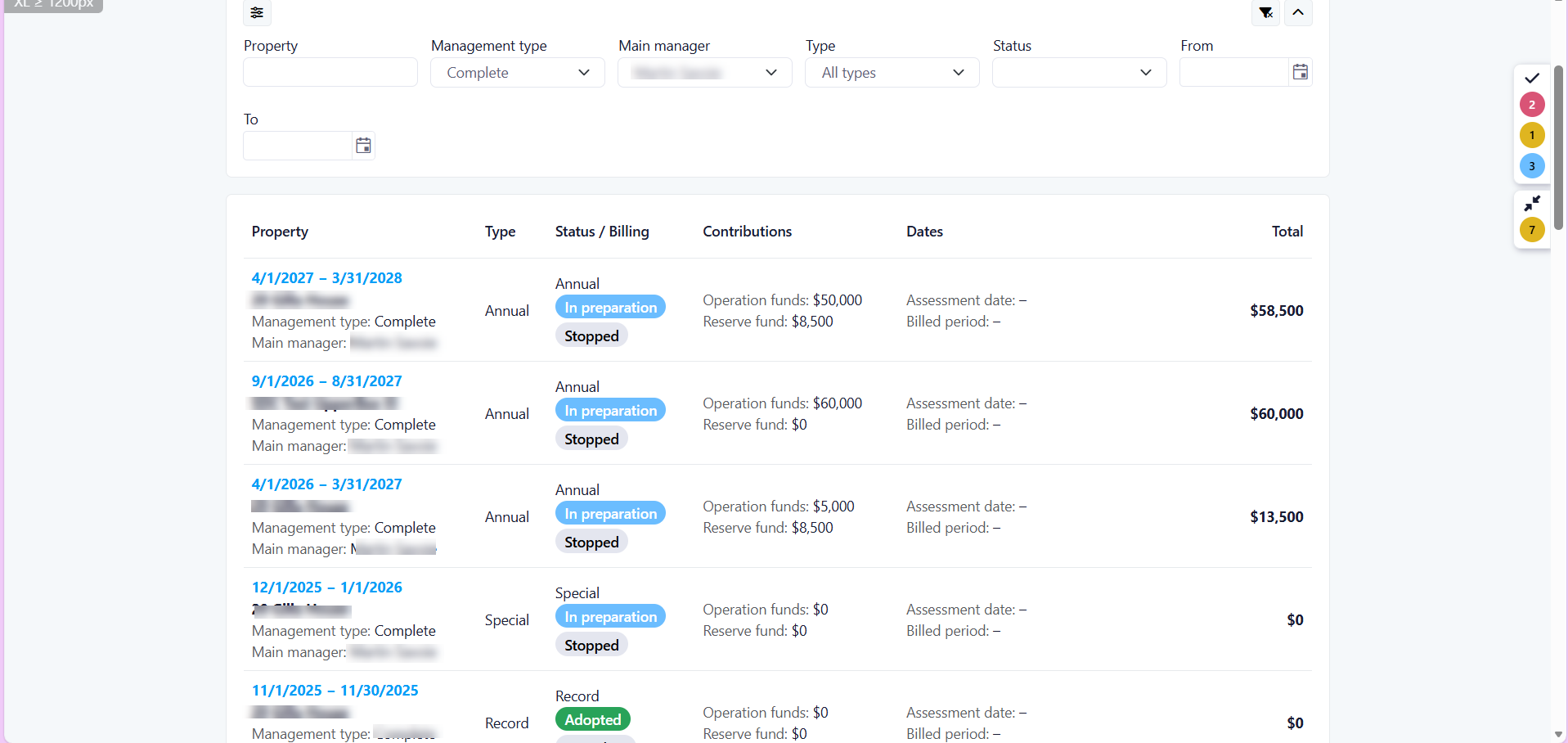
- Managers can now quickly filter, analyze, and export budget data by management type and main manager, improving visibility and decision-making.
-
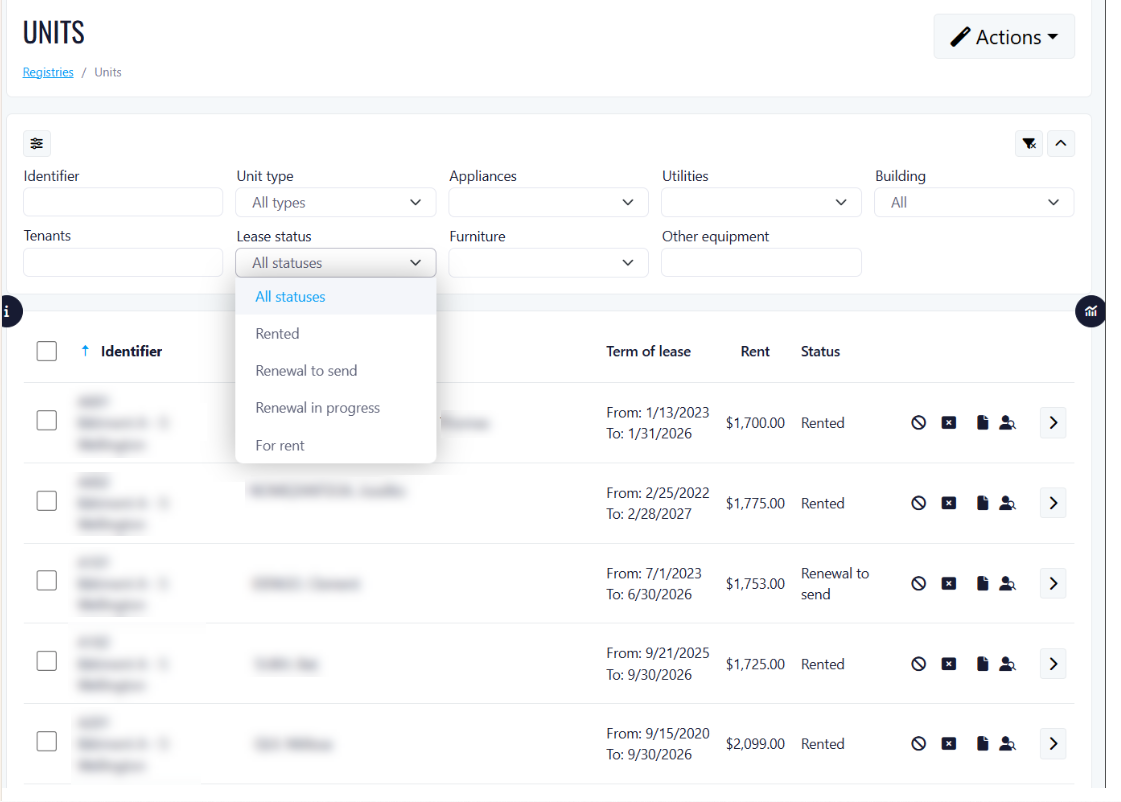
Rental Status Column and Lease Status Filter
What's New:
Benefits:
-
Save time when managing multiple properties
-
Quickly identify available units for prospective tenants
-
Better visibility into current occupancy
How to Use:
-
Navigate to Units page
-
Locate the Status column in the table
-
Use the Lease Status dropdown filter to show only relevant rental statuses
-
Combine with other filters to show more refined searches
-
Rental Calendar Improvements
Overview
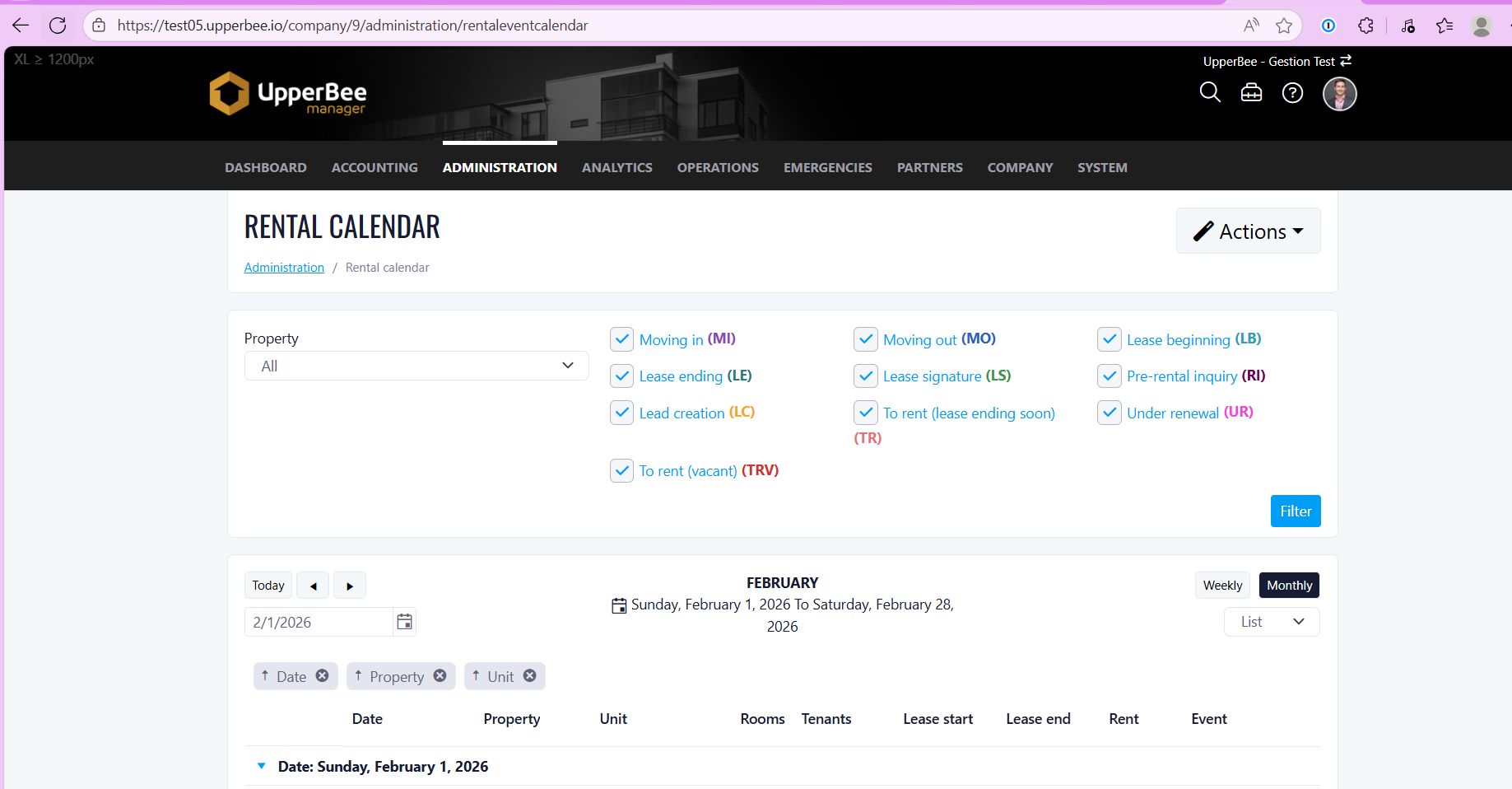
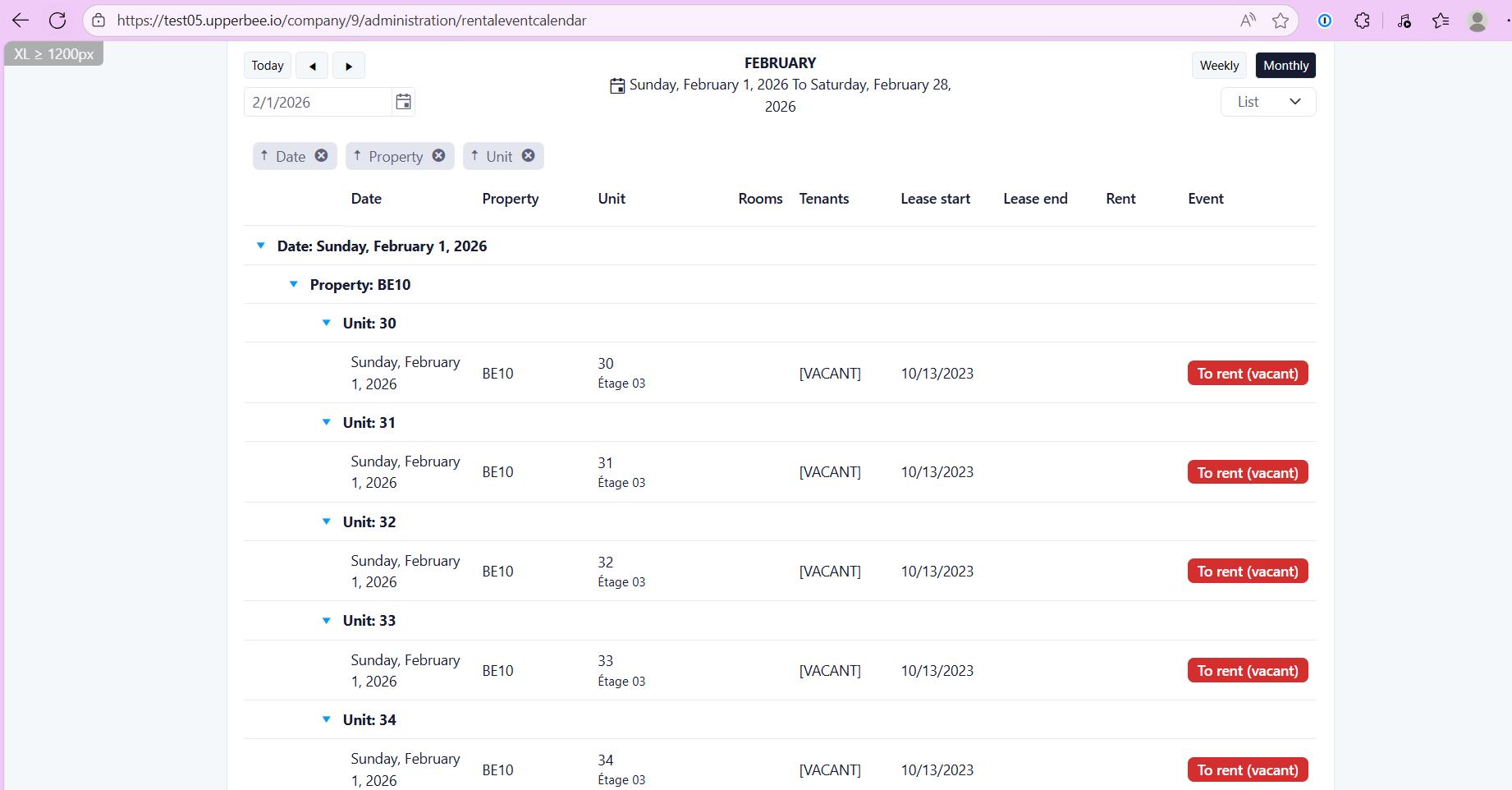
- Added a filter by unit type (e.g. 1 1/2, 2 1/2, etc.).
- Display of the lease period for each unit, including start and end dates.
- Display of the rent amount ($) based on the unit’s last known rent.
- Display of the floor number when available.
- Display of current tenant information, including first name, last name, and phone number.
- Display of previous tenant information when a lease has ended.
- Ability to view and modify report groupings (e.g. group by unit type).
- The default calendar view is now set to list view.
- Improved export functionality to match exactly what is displayed on screen, with no duplicate columns.
Benefits
- Improved visibility of unit availability and lease information.
- Faster and more efficient data analysis.
- A more consistent and user-friendly experience.
Release Week 2026-02-14
New Features
-
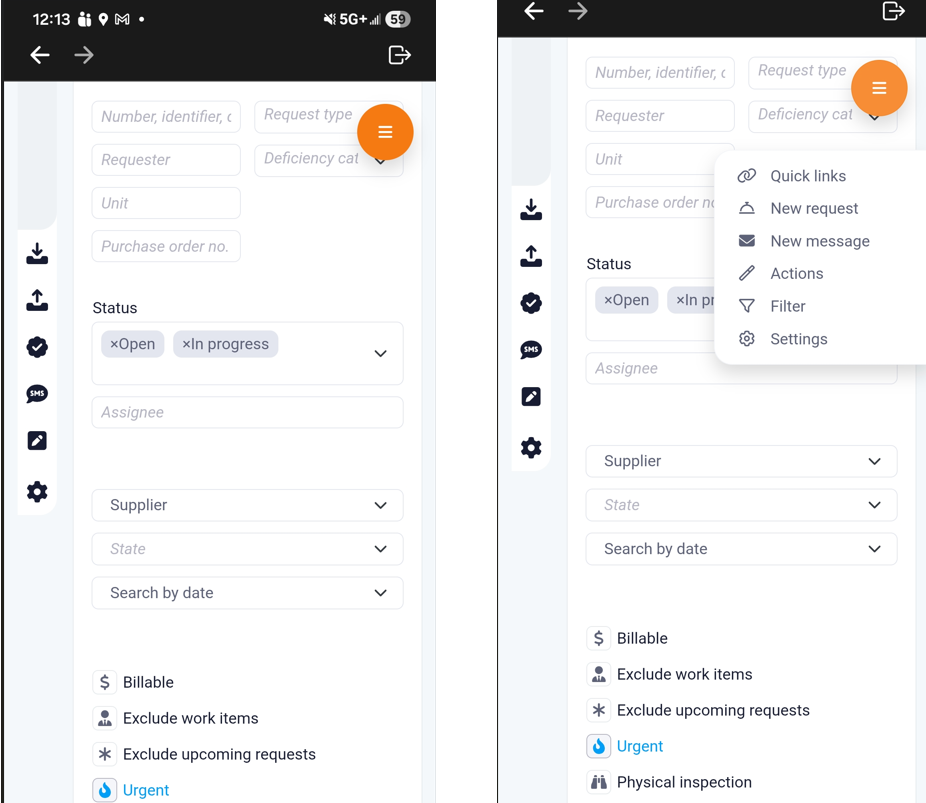
Sticky Pin Button for Quick Access
Overview
Features
- Added a sticky pin button visible on all backend pages.
- The button remains visible while scrolling and is positioned in the top-right corner of the screen.
- The pin becomes available when the top-of-page actions are no longer visible.
- Role-based pin display:
- Orange for Property Managers
- Green for Condo Owners
- Blue for Rentals users
- Clicking the pin opens a contextual quick action menu including, depending on the page:
- Quick Links
- Actions
- Create New
- Filter
- Settings
- The menu only displays options that exist on the current page.
- The menu closes when clicking or tapping anywhere outside of it (desktop and mobile).
- The pin does not resize and may overlay page content if needed.
Benefits
- Faster access to key actions without scrolling back to the top.
- Improved workflow efficiency.
- A more intuitive and consistent user experience.
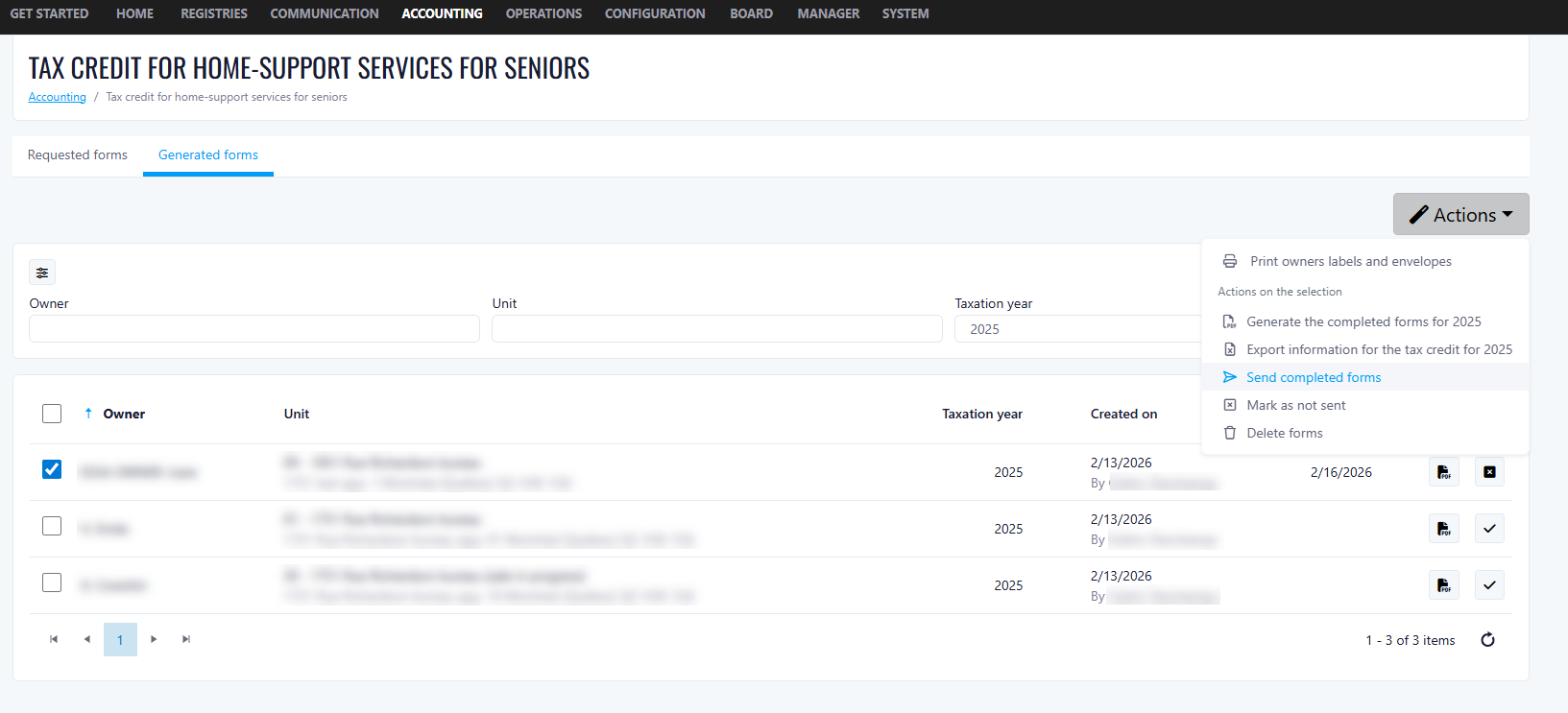
- Email Home Support Tax Credit form
You can now generate and email completed forms for a selected year (20XX) directly from the list, with clear validation and tracking to ensure emails are only sent to users with valid email addresses.
1) Outbound email behavior (no replies / no ticket creation)
-
All emails are sent from DONOTREPLY.
-
Replies are not supported:
-
If a client replies to the email, no ticket will be created.
-
2) Batch sending
-
Emails can be sent in batches (multiple users at once).
3) Email validation prompt (missing/invalid email)
-
If a user is selected who does not have a valid email on file, the system displays:
-
“User, XYZ, does not have a valid email on file”
-
-
Clicking OK closes the prompt.
-
The user must then manually uncheck the affected user(s) before continuing.
4) Confirmation prompt before sending (all emails valid)
-
When the user clicks “Generate and email the completed forms for 20XX”, and all selected accounts have valid emails, a confirmation prompt appears:
-
“Are you sure you want to send an email with the attachment for the year 20XX?”
-
-
Document Orders Module
Prerequisites
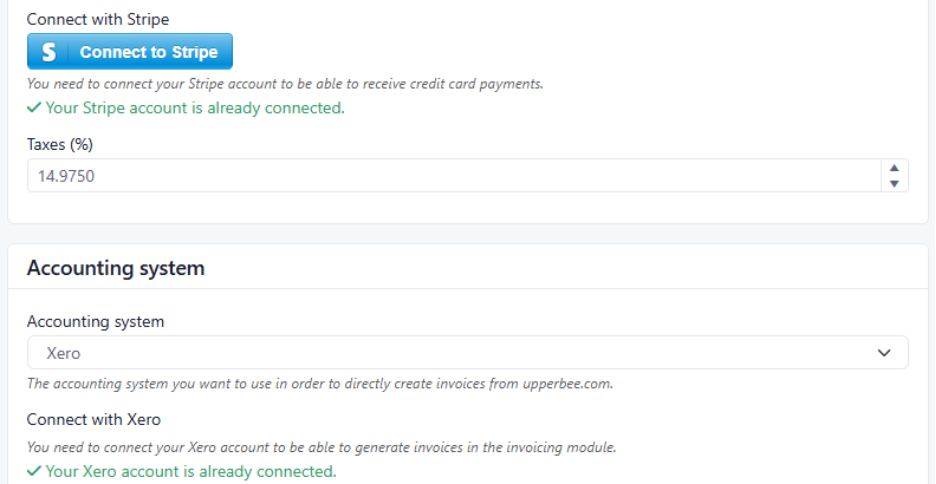
- Be connected to Stripe (for payment processing).
- Have an accounting system connected (currently supported: Xero and QuickBooks).
- Validate the automatically configured tax rate.
- The tax rate shown in settings will be the one applied to all document invoices.
How It Works
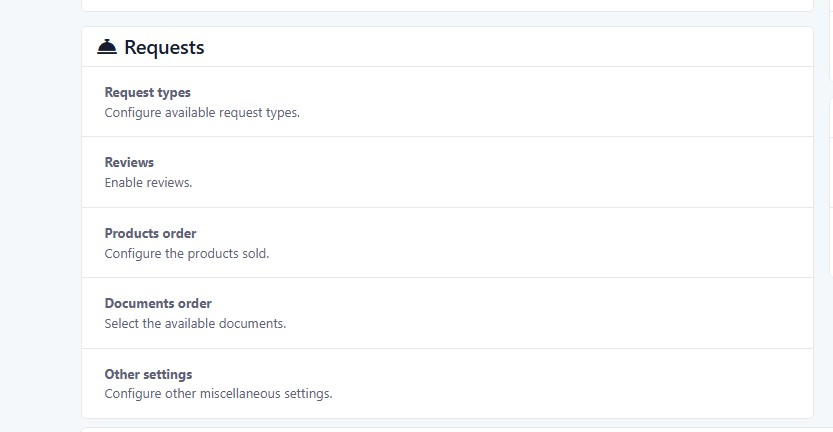
1. Configure Document Orders at the Company Level
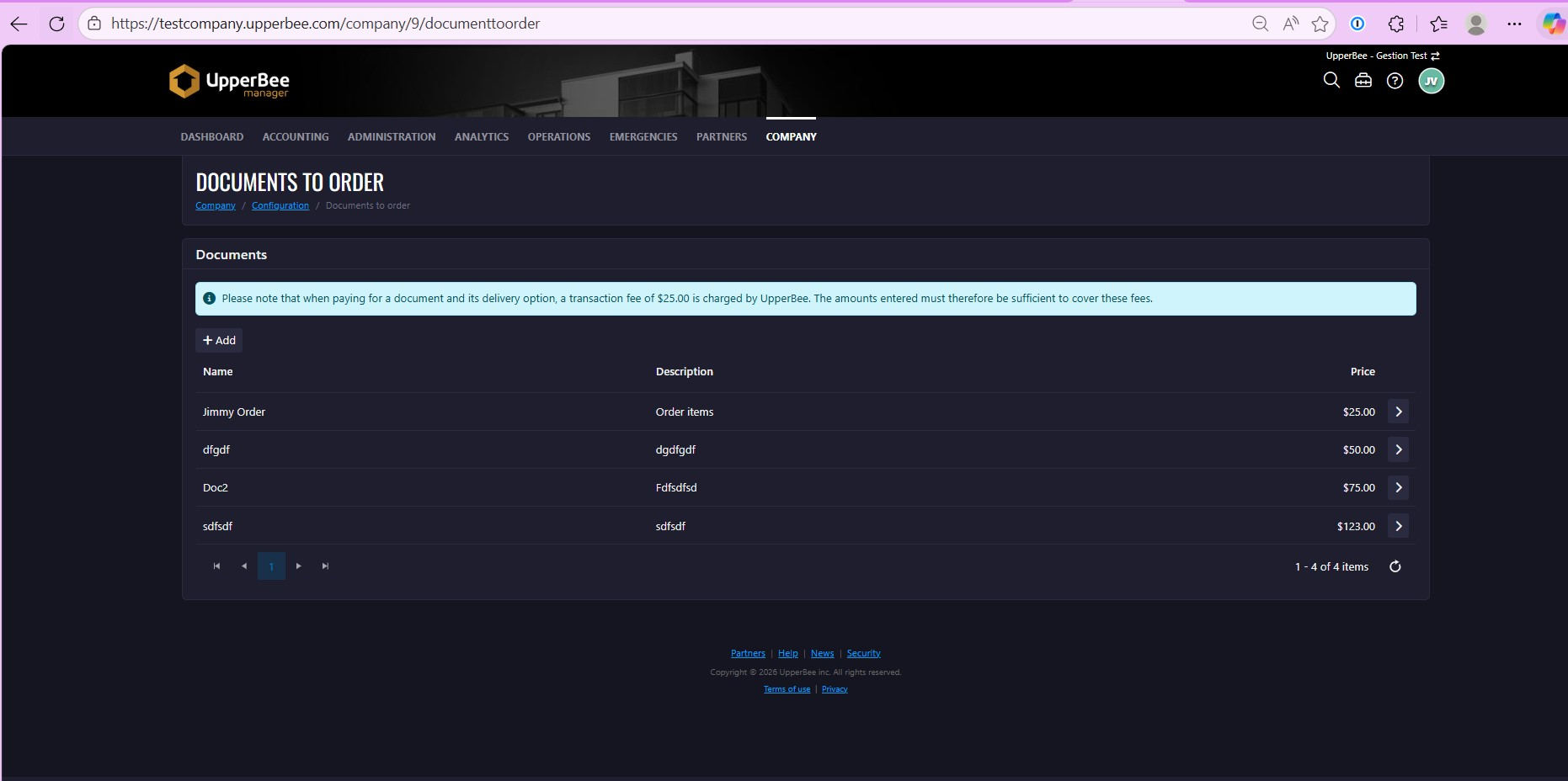
- Create and manage documents available for order
- Define delivery options for each document
- Set pricing and processing delays
Document Setup
- Delivery options
- Price
2. Enable Document Orders at the Property Level
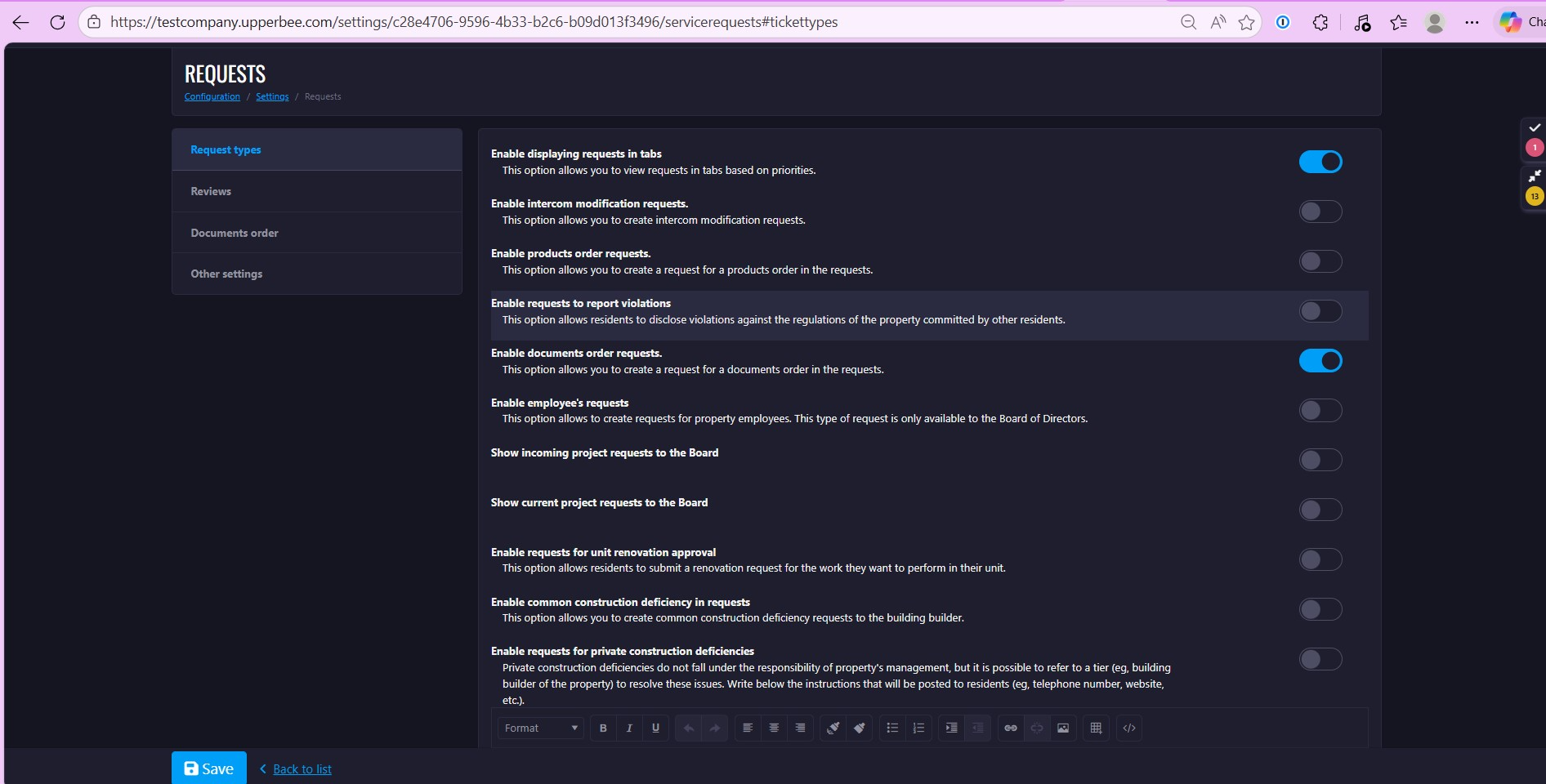
- A new option appears in the managed property settings
- Enable “Document Orders” for that property
- Select which documents should be available for requests
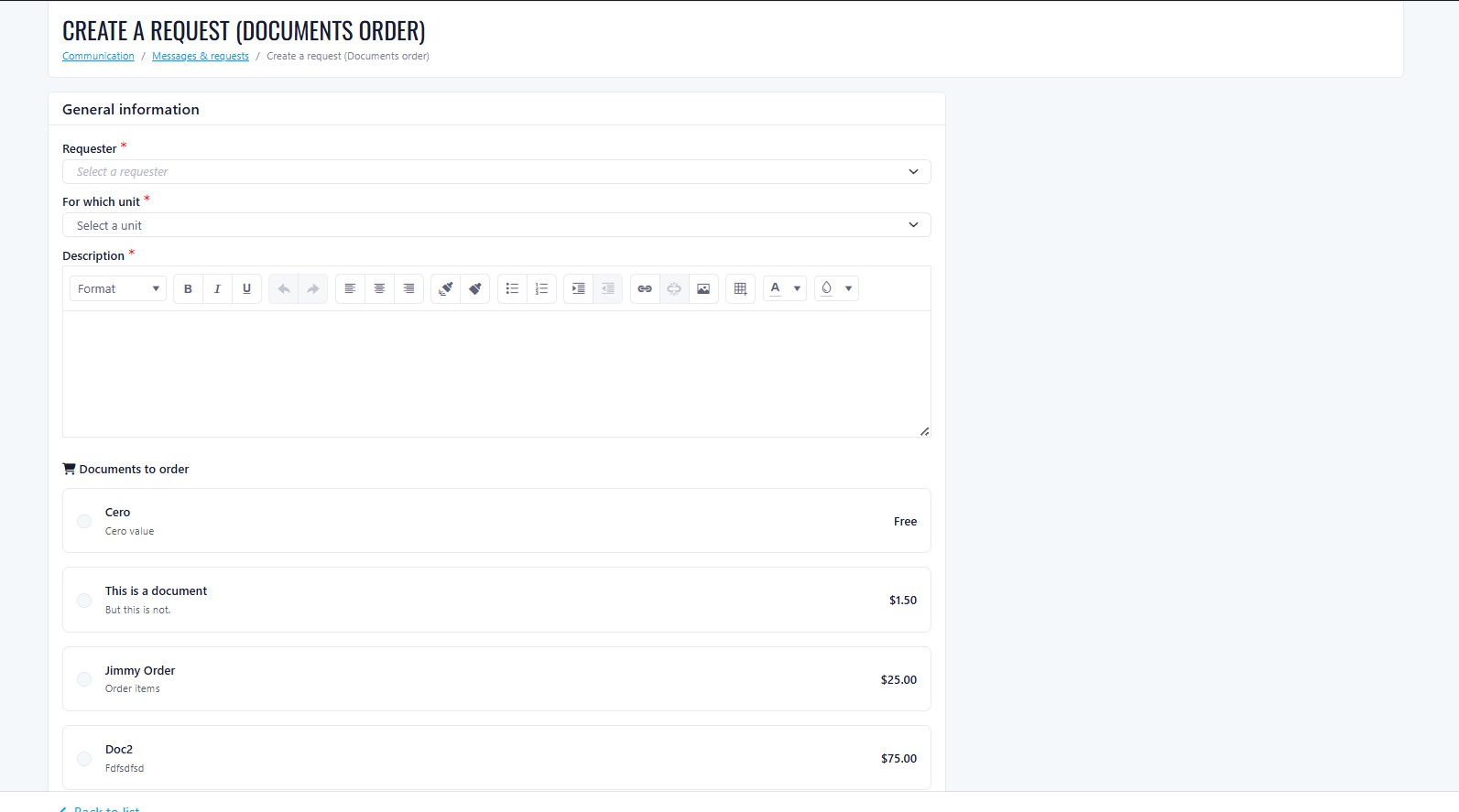
3. What Happens When a Request Is Submitted?
- Payment is automatically charged to the requester’s credit card
- Funds are transferred directly to the manager’s Stripe account
- A $25 usage fee is automatically deducted by UpperBee
- A confirmation email is sent to the requester
- A request is automatically created in the system
- An invoice is automatically generated in the connected accounting system (Xero or Quickbooks)
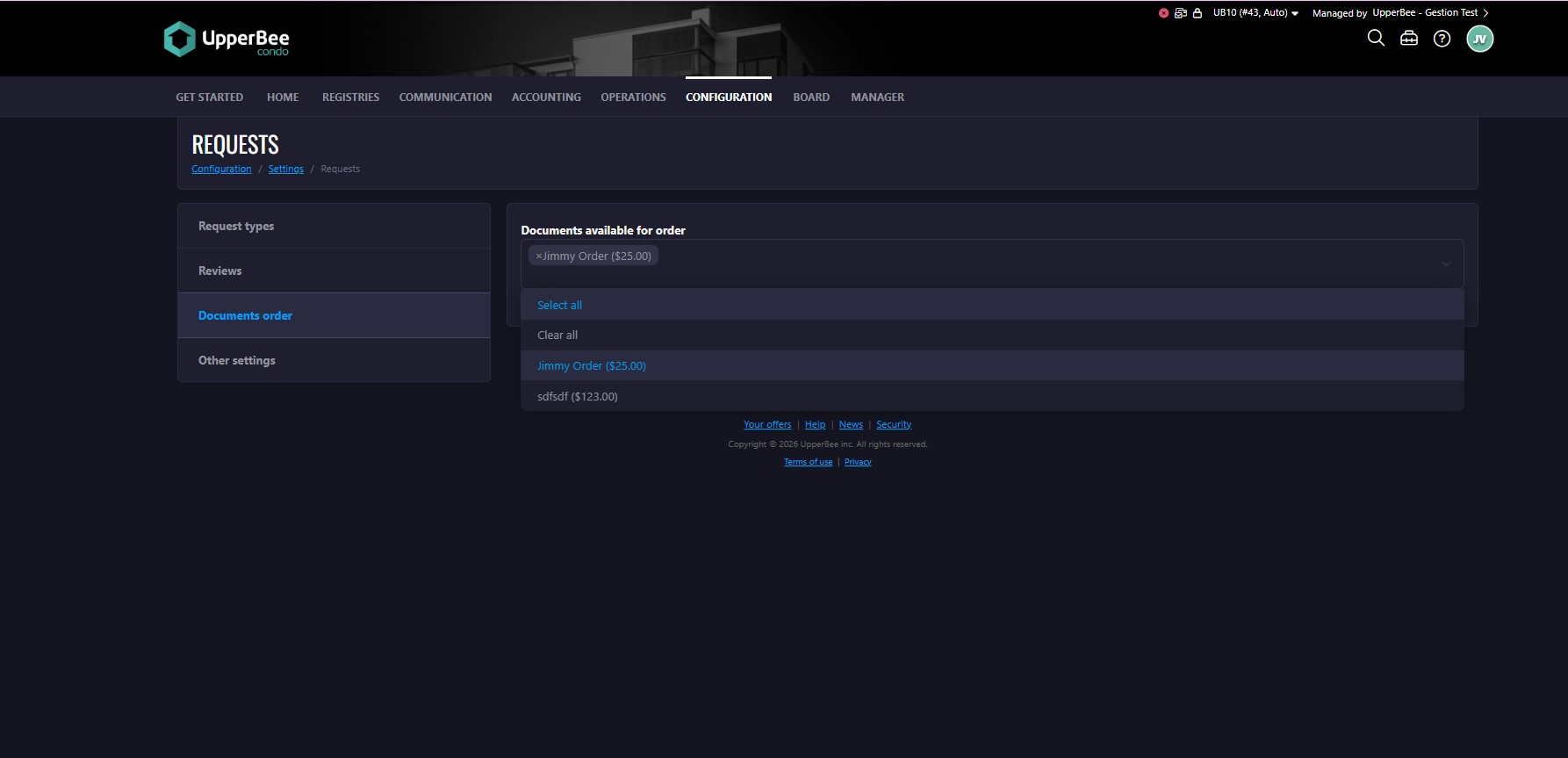
Property-Specific Order Forms
- Building A → Order Form with Pricing A
- Building B → Order Form with Pricing B
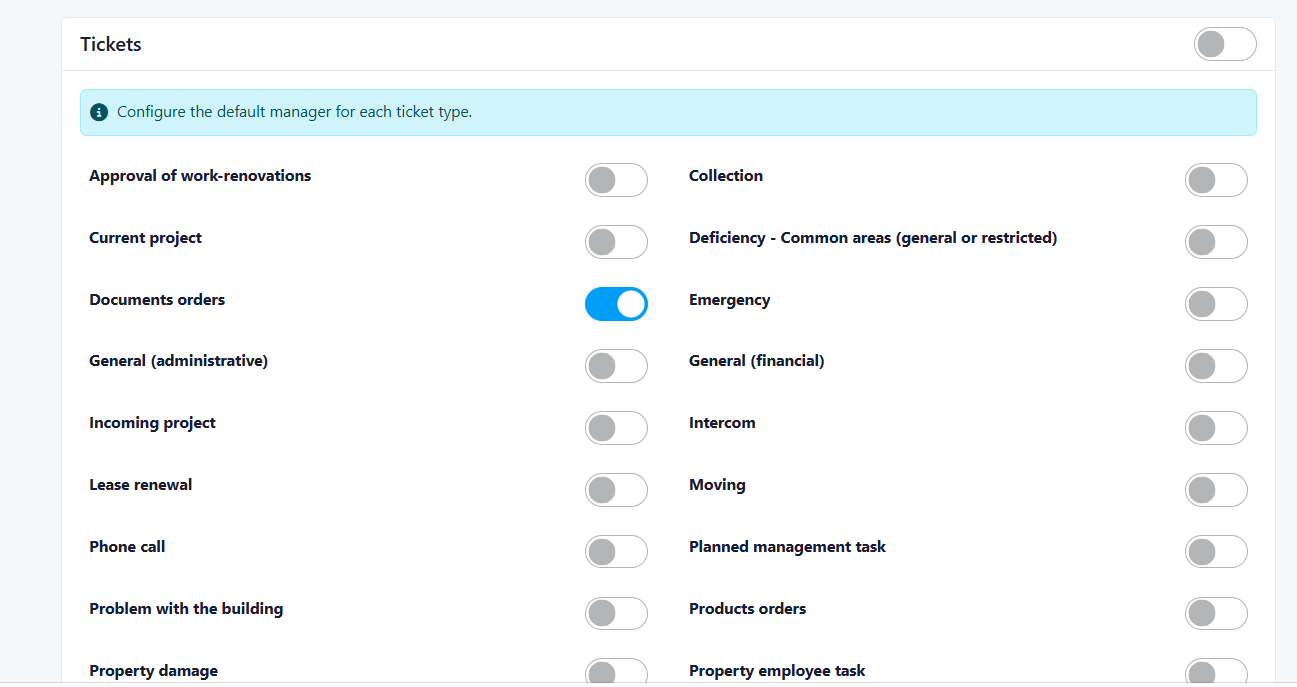
Additional Configuration: Automatic Assignment of Document Orders
- Reduces manual task assignment
- Ensures document requests are always directed to the correct team member
- Improves response time and workflow organization
Benefits for Property Managers
- Automatic payment collection
- Automatic accounting entry
- Automatic invoice creation
- Payments processed through Stripe
- Funds deposited directly into your account
- Tax rate automatically applied
- Invoice generated in Xero or Quickbooks
- Reduced manual bookkeeping errors
- No manual tracking of document payments
- No need to manually create invoices
- Requests are instantly created and tracked
- Payment collected upfront
- Immediate transfer to your Stripe account
Property-Level Document Availability
How It Works
- Documents and pricing are created at the company level in Document Orders.
- In the property settings, enable the “Document Orders” option.
- Select which documents should be available for that specific property.
- Save the configuration.
Benefits
- Greater control at the property level
- Clear visibility of which documents are offered per building
- Reduced configuration complexity
- Consistent pricing management at the company level
- Improved operational clarity
Summary
- Offer documents for online purchase
- Automate payment processing
- Automatically generate invoices
- Reduce administrative workload
- Improve financial tracking
- Enhance the client experience
-
Annexe 6 Support
- Ensures legal compliance
- Simplifies rent modifications
- Protects both the landlord and the tenant
- Saves time by elimination paperwork
- Maintains records
- Added Annexe 6 template
- Implemented fillable fields in the form for each option
- Modified lease configurations to include Annexe 6
- Enhanced lease workflow now due to incorporation of Annexe 6
- Form signing capabilities now enabled
-
Rental: Bulk Image Download and Delete
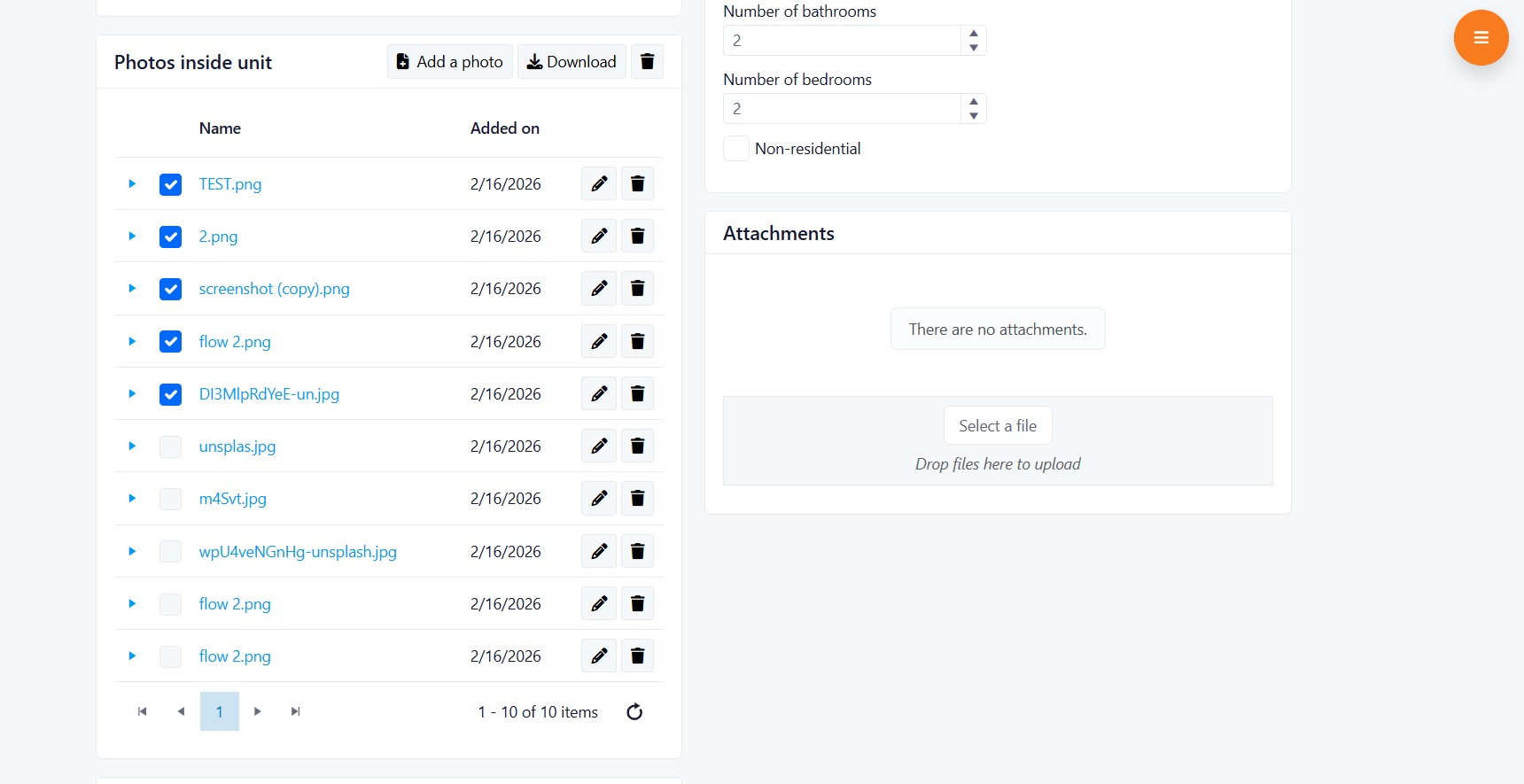
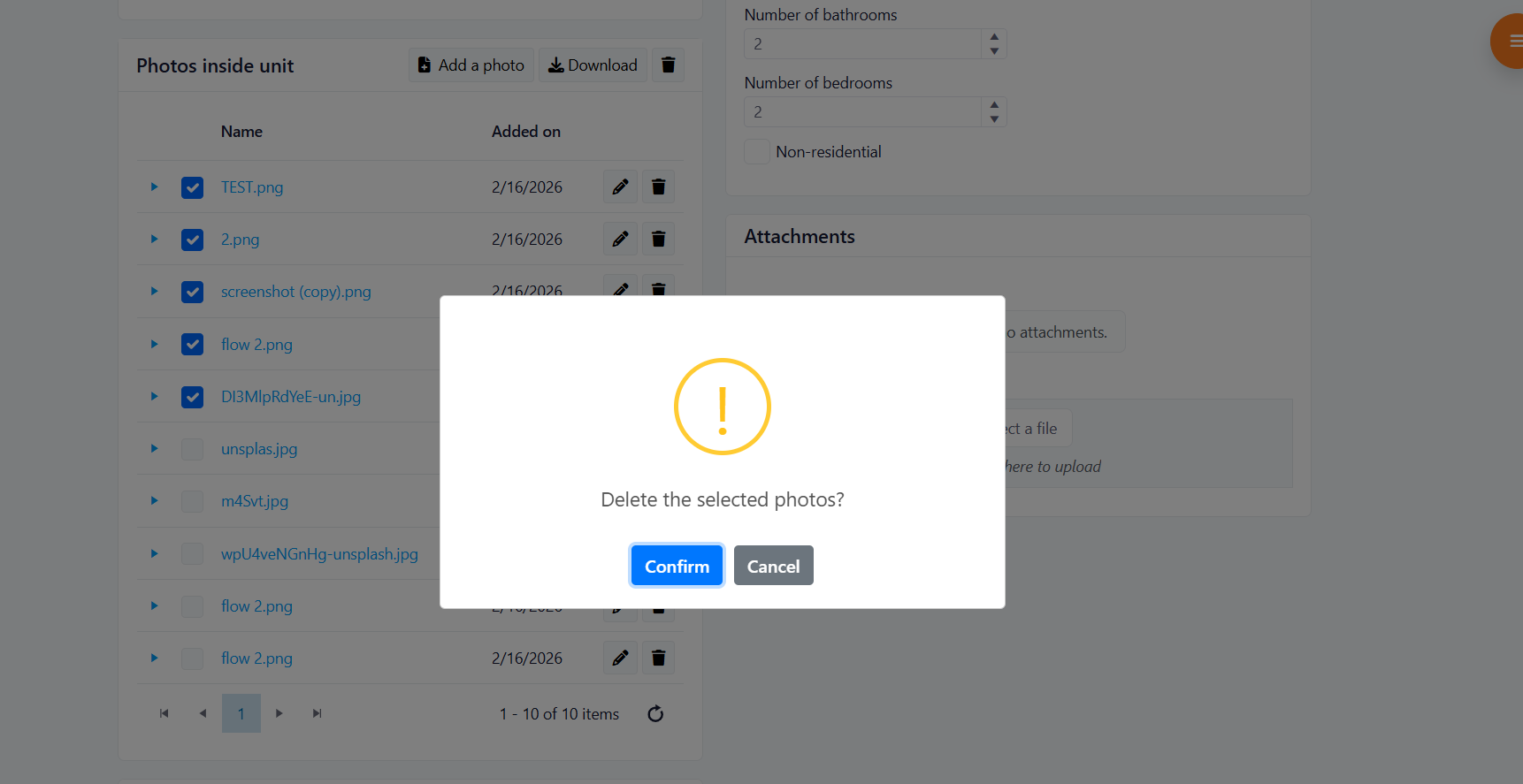
- Allows user to select as many images as needed in a single action
- Allows download of an entire set of images
- A confirmation dialog prevents accidental deletion, giving full control and confidence.
-
Mail Merge Template Editing via Syncfusion DOCX Editor
- The second step of the mail merge workflow, where users can modify the selected template
- The Word template editing interface within the mail merge module
What’s New
Integrated DOCX Editor for Template Modification
- Direct modification of mail merge templates
- Real-time editing before generating documents
- Improved workflow efficiency
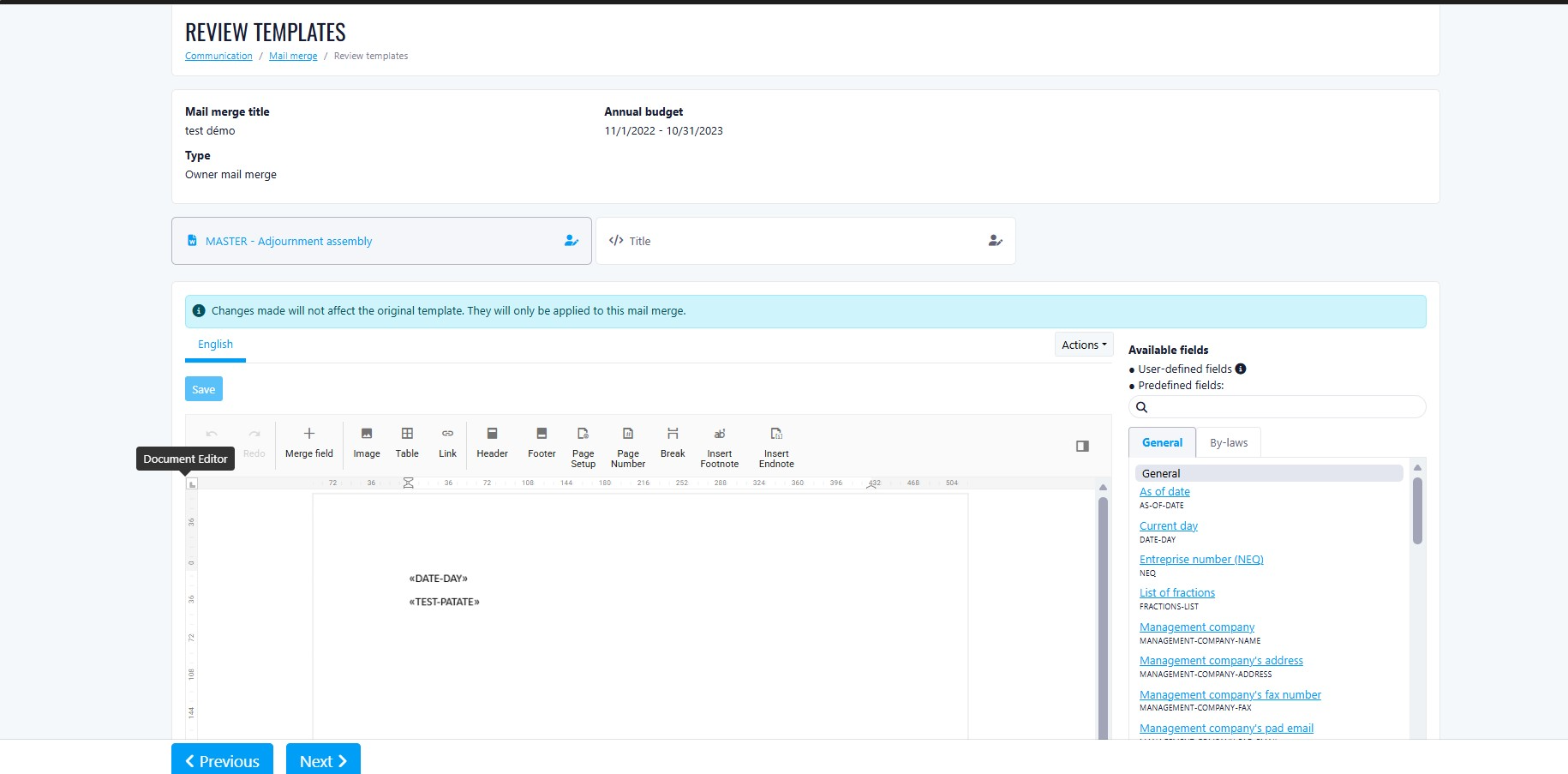
Simplified Toolbar
- Text formatting
- Bold
- Italic
- Underline
- Headings (H1, H2, etc.)
- Mail Merge tools
- Insert Merge Field
- Right-clicking on a merge field inserts it directly into the document
- Insert Merge Field
- Table insertion
Benefits
- Streamline the mail merge workflow
- Reduce dependency on external Word editing
- Provide a cleaner and more focused editing experience
- Ensure users only access relevant tools for document customization
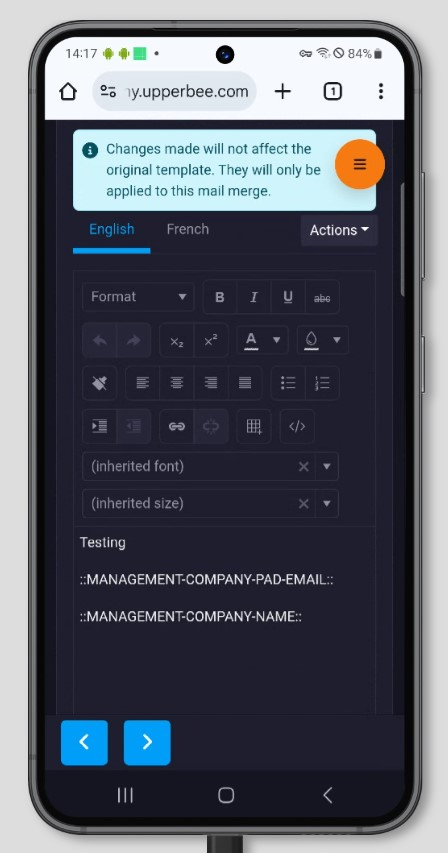
Impact
- No impact on existing templates
- No data structure changes
- Backward compatible with current mail merge functionality
Improvements
Release Week 2026-02-21
New Features
-
Inline Calculator in Amount Fields
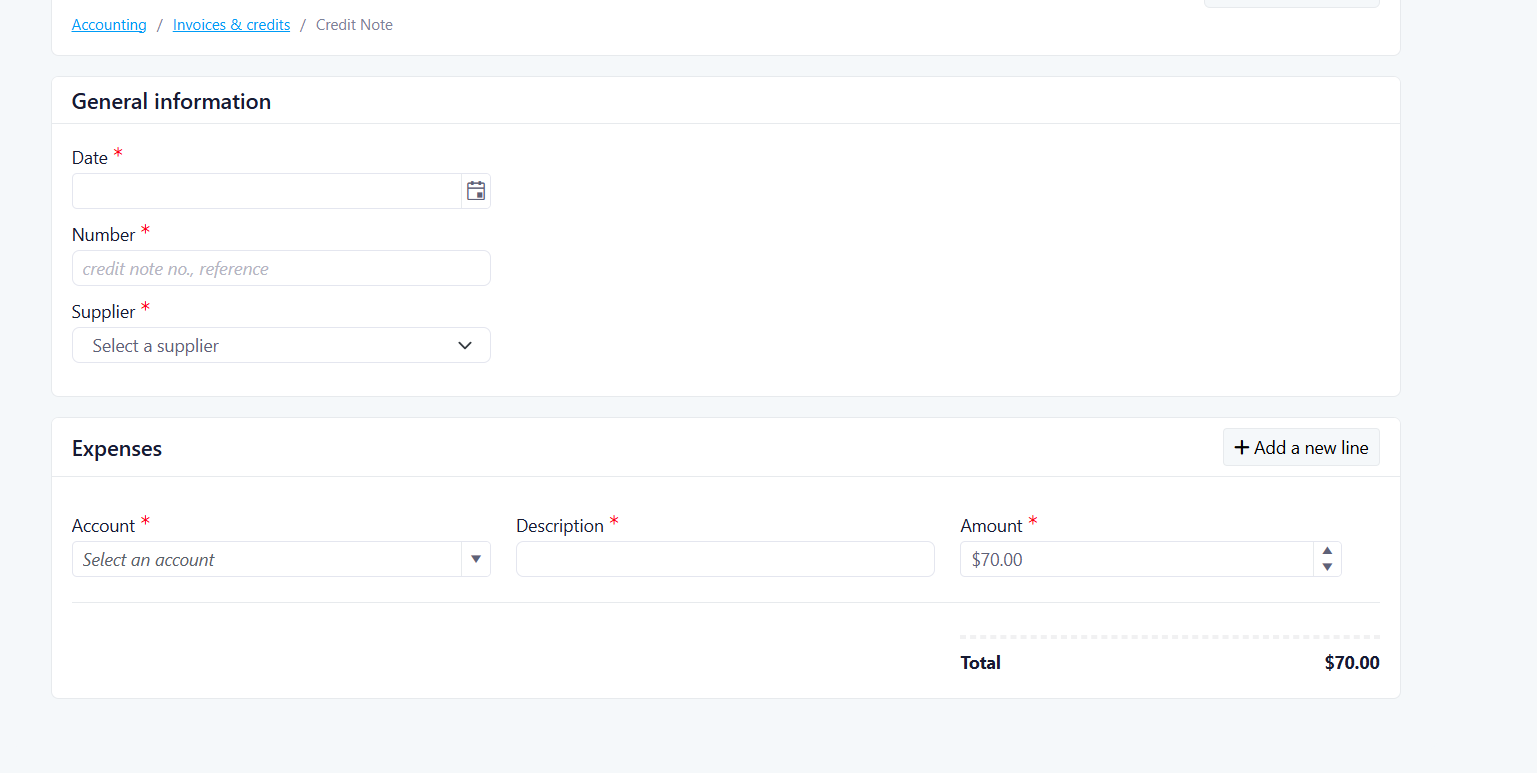
Feature Overview
How it Works
- Input: Enter basic math using addition (+), subtraction (-), multiplication (*), division (/), and parentheses ( ) for grouping.
- Trigger: The system calculates the total as soon as you press Enter, Tab out of the field, or click elsewhere.
- Formatting: You can start your calculation with or without an = sign (e.g., both =100+25.50 and 100+25.50 work).
- Validation: If an expression is invalid, the text will appear in blue, and the field will require correction before saving.
Key Benefits
- Increased Speed: Save time by calculating shared expenses or proportions without switching apps.
- Reduced Errors: Minimize manual transcription errors by letting the system handle the math.
- Native Precision: Calculations automatically respect accounting rounding rules (typically 2 decimal places).
- Clean Data: Only the final result is stored in your database and history logs, keeping your records tidy.
Improvements
Release Week 2026-02-27
New Features
Improvements