Zapier documentation
Actions
Create Rental Lead
Requirements:
Signed in user must
Be assigned to a rental company, otherwise the Company dropdown will be empty and therefore, they will not be able to create a Zap for this action
Must have the permission Rental leads management → Manage for the company selected in the dropdown. Otherwise, the creation will be blocked.
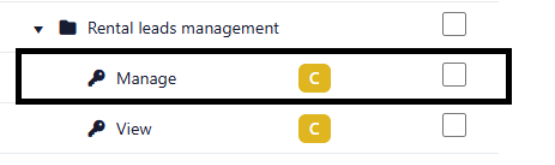
To edit the user’s permissions, a manager must access the company’s access roles management’s page and then create or edit a role assigned to the user with the permission.
Action description:
When you create a Zap for this action, a new rental lead will be created for the rental company selected in the Zap with the information provided in the Zap. To view the rental leads created for the rental company, you must access the page through Administration -> Rental leads management.
Fields Specifications:
Full Name: Required if no values are entered for First Name and Last Name.
First Name & Last Name: Required if no values are entered for Full Name.
Email: Not required.
Mobile: Not required. If the field is filled, we expect a phone number without any special characters nor spaces.
Note: Not required.
Company: Required. This is the company for which the lead will be created.
Property: Not required. You must select a company first to select a property. If the field is filled, the lead will be created for the specified property.
Unit: Not required. You must select a property first to select a unit. If the field is filled, the lead will be created for the specified unit.
External Id: Not required. This field is used to send data related to the lead in a variety of our Triggers.
Send Notification Email To When Rental Lead Is Created: Not required. When filled, a notification email will be sent to the emails specified in the field. The emails must be entered in a single string separated with semi-colons. Ex: email1@email.com;email2@email.com;email3@email.com
Add Document
Requirements:
Signed in user must
Be assigned to a company with the feature Document Reception activated, otherwise the Property dropdown will be empty and therefore, they will not be able to create a Zap for this action
Must have the permission Document submission and reception → Add in the company selected in the dropdown. Otherwise, the creation will be blocked.
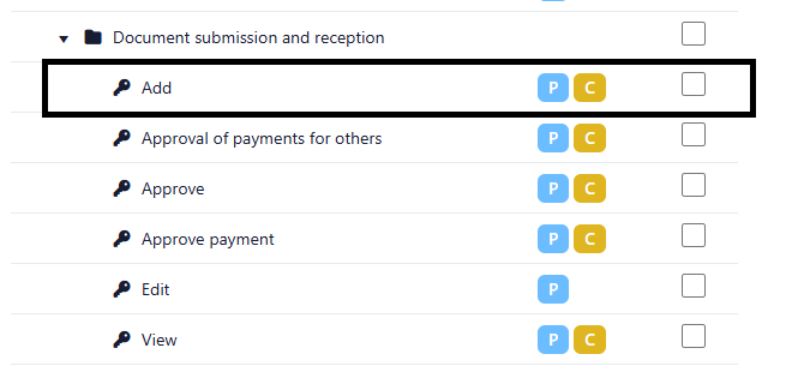
To edit the user’s permissions, a manager must access the company’s access roles management’s page and then create or edit a role assigned to the user with the permission.
Documents can only be created for properties managed by companies that have the feature Document Reception activated.
Action description:
When you create a Zap for this action, a new document will be created for the property selected in the Zap with the information provided in the Zap. To view the documents created for the company, you must access the page through Accounting → Document Reception.
We recommend that you use this Action with a Trigger by GetMyInvoices.
Fields Specifications:
Property: Required. The document will be created for the property’s managing company.
Document Name: Required. The document’s name with the extension.
Document Url: Required. The document’s public URL.
Triggers
External Rental Lead's Rental Inquiry Completed
Requirements:
Signed in user must
Be assigned to a rental company, otherwise the Company dropdown will be empty and therefore, they will not be able to create a Zap for this Trigger
Must have the permission Pre-rental inquiry → Manage for the company selected in the dropdown. Otherwise, the subscription to the trigger will be blocked.
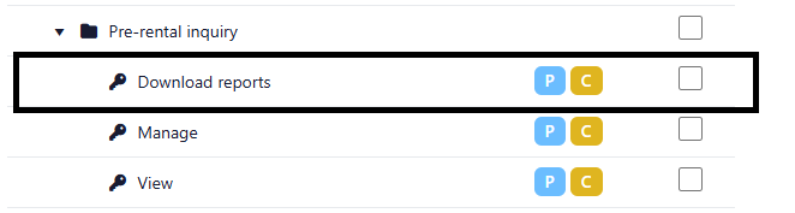
To edit the user’s permissions, a manager must access the company’s access roles management’s page and then create or edit a role assigned to the user with the permission.
Trigger description:
When you subscribe to this trigger, you will be hooked to receive data from UpperBee regarding rental inquiries that are completed for rental leads with external ids (See Create Rental Lead).
It is imperative that the rental lead is created with our Action Create Rental Lead with a provided external id; all other completed rental inquiries will not send out data to your Zap.
Data that will be sent out to your Zap:
External Id: String. The external id you provided in Create Rental Lead.
Report Url: String. URL to download the report.
Credit Report Url: String. URL to download the credit report (if a credit inquiry was conducted for the lead).
External Rental Lead's Lease Signed
Requirements:
Signed in user must
Be assigned to a rental company, otherwise the Company dropdown will be empty and therefore, they will not be able to create a Zap for this Trigger
Must have the permission Tenant → View for the company selected in the dropdown. Otherwise, the subscription to the trigger will be blocked.
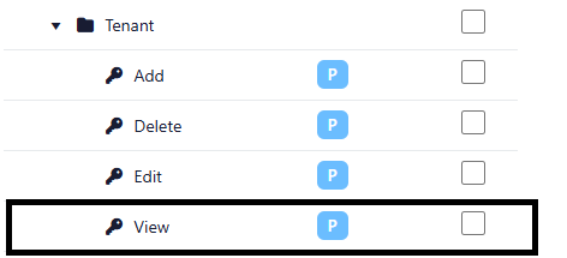
To edit the user’s permissions, a manager must access the company’s access roles management’s page and then create or edit a role assigned to the user with the permission.
Trigger description:
When you subscribe to this trigger, you will be hooked to receive data from UpperBee regarding leases that are signed for rental leads with external ids (See Create Rental Lead).
It is imperative that the rental lead is created with our Action Create Rental Lead with a provided external id; all other leases created will not send out data to your Zap.
Lease data that will be sent out to your Zap:
External Id: String. The external id you provided in Create Rental Lead.
Unit Address: String. Full address of the lease.
Address Line 1: String. Address line 1 of the lease’s address.
Address Line 2: String. Address line 2 of the lease’s address.
City: String. City of the lease’s address.
State/Province: String. State or province of the lease’s address.
Zip/Postal Code String. Zip or postal code of the lease’s address.
Tenants: The tenants’ full names separated by semi-colons if there are multiple tenants for a single lease.
Rent Amount: String. The amount of the rent with the taxes and additional fees applied.
Lease StartDate Iso8601: Date. The lease’s start date in UTC formatted in Iso8601.
Lease EndDate Iso8601: Date. The lease’s end date in UTC formatted in Iso8601.
Status: String. The status of the lease. Value will be “Signed” for this trigger.
External Rental Lead's Lease Ended
Requirements:
Signed in user must
Be assigned to a rental company, otherwise the Company dropdown will be empty and therefore, they will not be able to create a Zap for this Trigger
Must have the permission Tenant → View for the company selected in the dropdown. Otherwise, the subscription to the trigger will be blocked.
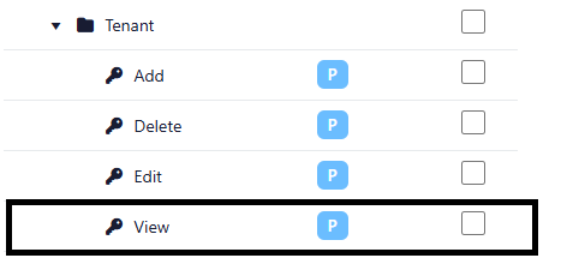
To edit the user’s permissions, a manager must access the company’s access roles management’s page and then create or edit a role assigned to the user with the permission.
Trigger description:
When you subscribe to this trigger, you will be hooked to receive data from UpperBee regarding existing leases that are ended for rental leads with external ids (See Create Rental Lead).
It is imperative that the rental lead is created with our Action Create Rental Lead with a provided external id; all other ended leases will not send out data to your Zap.
Lease data that will be sent out to your Zap:
External Id: String. The external id you provided in Create Rental Lead.
Unit Address: String. Full address of the lease.
Address Line 1: String. Address line 1 of the lease’s address.
Address Line 2: String. Address line 2 of the lease’s address.
City: String. City of the lease’s address.
State/Province: String. State or province of the lease’s address.
Zip/Postal Code String. Zip or postal code of the lease’s address.
Tenants: The tenants’ full names separated by semi-colons if there are multiple tenants for a single lease.
Rent Amount: String. The amount of the rent with the taxes and additional fees applied.
Lease StartDate Iso8601: Date. The lease’s start date in UTC formatted in Iso8601.
Lease EndDate Iso8601: Date. The lease’s end date in UTC formatted in Iso8601.
Status: String. The status of the lease. Value will be “Ended” for this trigger.
External Rental Lead's Lease Renewal Status Changed
Requirements:
Signed in user must
Be assigned to a rental company, otherwise the Company dropdown will be empty and therefore, they will not be able to create a Zap for this Trigger
Must have the permission Tenant → View for the company selected in the dropdown. Otherwise, the subscription to the trigger to the trigger will be blocked.
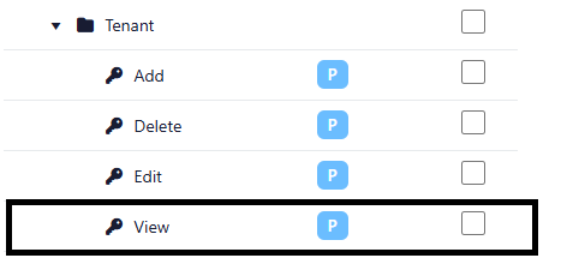
To edit the user’s permissions, a manager must access the company’s access roles management’s page and then create or edit a role assigned to the user with the permission.
Trigger description:
When you subscribe to this trigger, you will be hooked to receive data from UpperBee regarding existing leases for which the lease renewal status changes for rental leads with external ids (See Create Rental Lead).
It is imperative that the rental lead is created with our Action Create Rental Lead with a provided external id; all other leases with changes to the lease renewal status will not send out data to your Zap.
Lease data that will be sent out to your Zap:
External Id: String. The external id you provided in Create Rental Lead.
Unit Address: String. Full address of the lease.
Address Line 1: String. Address line 1 of the lease’s address.
Address Line 2: String. Address line 2 of the lease’s address.
City: String. City of the lease’s address.
State/Province: String. State or province of the lease’s address.
Zip/Postal Code String. Zip or postal code of the lease’s address.
Tenants: The tenants’ full names separated by semi-colons if there are multiple tenants for a single lease.
Rent Amount: String. The amount of the rent with the taxes and additional fees applied.
Lease StartDate Iso8601: Date. The lease’s start date in UTC formatted in Iso8601.
Lease EndDate Iso8601: Date. The lease’s end date in UTC formatted in Iso8601.
Status: String. The status of the lease renewal. Values can be “Accepted”, “Rejected”, “Canceled”, “InDispute” or “AutoRenewed”.
On the UpperBee platform
External Identifier Field
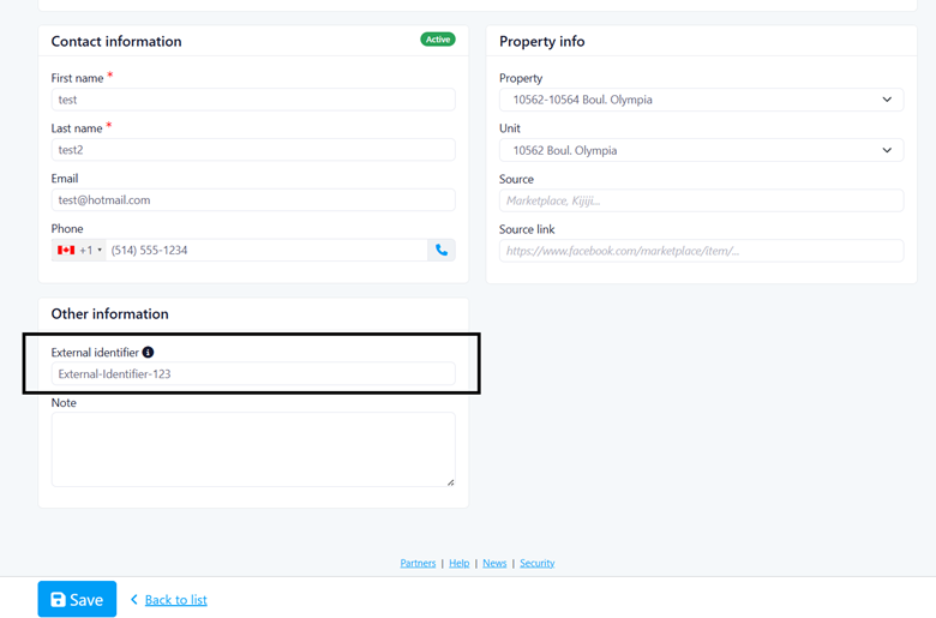
The External Identifier field allows you to associate a unique external reference with your rental leads. This identifier is particularly useful for integrating rental leads with external systems and tracking them across different platforms. The external identifier can be added while creating a rental lead or can be modified while editing one.
Key Features:
Maximum length of 50 characters
Optional field that can be left empty if not needed
Displays in the rental lead detail page when provided
Used in Zapier triggers to identify specific rental leads
Usage: When creating or editing a rental lead, you can provide an External Id that will be stored with the lead and displayed in the contact information section. This identifier is essential for Zapier integrations as it allows triggers to send data related to specific leads back to your external systems.
Rental Inquiry Linking
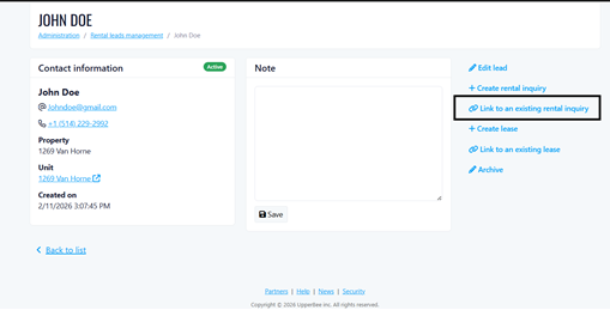
UpperBee now supports linking existing rental inquiries to rental leads, creating a seamless connection between prospect management and the inquiry process.
Available Actions:
Link to Existing Inquiry: Connect a rental lead to an existing pre-rental inquiry for the same property and unit
Create New Inquiry: Generate a new pre-rental inquiry directly from the rental lead with pre-populated information
View Linked Inquiry: Navigate directly to the associated rental inquiry
Unlink Inquiry: Remove the connection between the rental lead and inquiry
Permissions:
User must have permission Rental Inquiry -> Manage and Rental Inquiry -> View to see the options and do the actions
Requirements for Linking:
Rental lead must be in Active status
Rental lead must have both property and unit assigned
Target inquiry must be for the same property and unit
Inquiry cannot already be linked to a different rental lead
Automatic Linking: When linking a rental inquiry that is already associated with a lease, the lease will also be automatically linked to the rental lead, ensuring data consistency across all related records.
Lease Linking
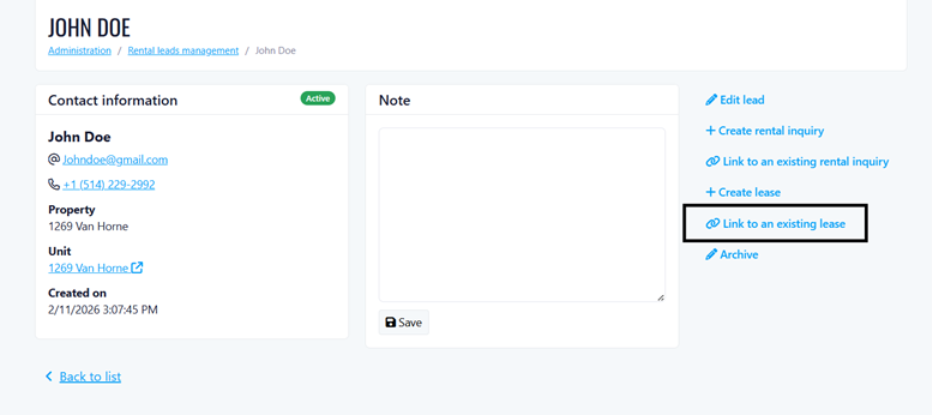
The lease linking functionality enables property managers to connect rental leads with existing or new leases, providing complete visibility into the tenant lifecycle.
Available Actions:
Link to Existing Lease: Connect a rental lead to an existing current or upcoming lease
Create New Lease: Generate a new lease directly from the rental lead with tenant information pre-populated
View Linked Lease: Navigate directly to the associated lease
Unlink Lease: Remove the connection between the rental lead and lease
Permissions:
User must have permission Tenant -> Add, Tenant -> View and Tenant -> Edit to see the options and do the actions
Requirements for Linking:
Rental lead must be in Active status
Rental lead must have both property and unit assigned
Target lease must have Current or Upcoming status
Lease cannot already be linked to a different rental lead
If both rental inquiry and lease are linked, they must be consistent with each other
Data Protection:
When a rental lead is linked to either a rental inquiry or lease, the property and unit fields become read-only in the edit form to maintain data integrity and prevent conflicts
If we have a rental lead linked to a lease and we try to link a rental inquiry that is linked to a different lease, the system will return an error and block the linking.
Was this article helpful?
That’s Great!
Thank you for your feedback
Sorry! We couldn't be helpful
Thank you for your feedback
Feedback sent
We appreciate your effort and will try to fix the article