
Release Notes
First Week Of The Month
New Feature:
Allocation Key Column on the Funds Page
Overview
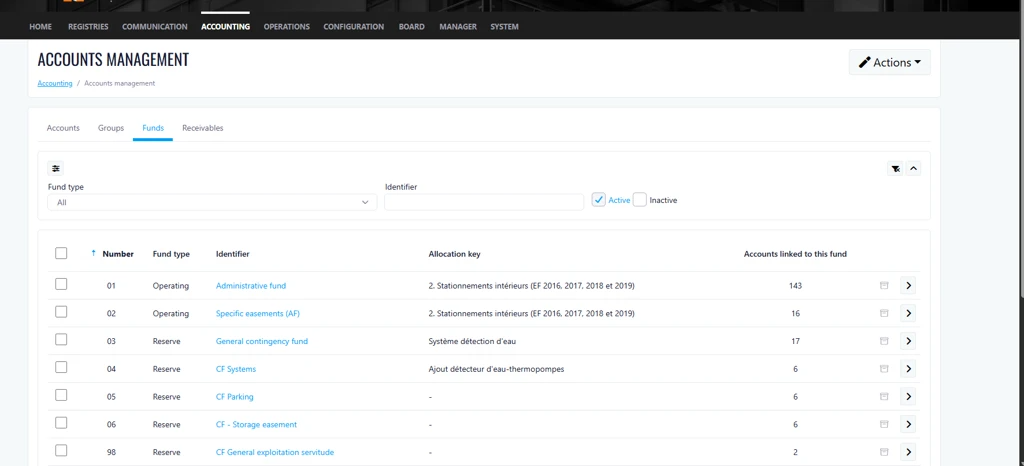
This release introduces a new Allocation Key column on the Funds page. The enhancement provides users with immediate visibility into each fund's allocation key, eliminating the need to open individual fund records for verification. This streamlines fund management activities and improves overall efficiency.
How It Works
Users can now view the Allocation Key directly from the Funds list, allowing for quicker validation and review of fund configurations without navigating into each fund's details.
Where to Find It
Accounting > Account Management > Funds
To Access It
- Navigate to the Accounting menu and select Account Management.
- Open the Funds tab.
- Locate the new Allocation Key column within the funds grid.
Previous Experience
Previously, the allocation key information was not displayed in the Funds list. Users were required to select Edit for each individual fund to view and validate the allocation key.
What's New
- Added a new Allocation Key column to the Funds page.
- Allocation keys are now visible directly from the funds list.
- Reduced the need to access individual fund records for validation purposes.
Benefits
- Improved Efficiency
- Faster Validation Process
- Enhanced Accuracy and Visibility
Important Notes:
For rental properties, the new column displaying the allocation key is now available in the "Projects" tab.
Improvements
Enhanced Request Closure Management
Overview
This release introduces Enhanced Request Closure Management, designed to improve communication around closed Requests and ensure Requests are properly finalized after a defined period.
Past State
Previously, when a Request was closed, users could continue replying to the ticket indefinitely, either through the application or by email. Replies could reopen the Request regardless of how long it had been closed. Additionally, automatically closed Requests did not notify all participants that the Request had been closed.
What's New
With this release:
-
Users and request participants receive an email notification when a Request is automatically closed by the system.
-
Closed Requests remain editable and can be reopened for 14 days after closure.
-
After 14 days, closed Requests become permanently closed and read-only.
-
Permanently closed Requests can no longer be reopened, updated, or replied to.
-
Email replies to permanently closed Requests no longer reopen or update the Request.
-
Users attempting to reply to a permanently closed Request by email receive an automated notification directing them to create a new Request.
-
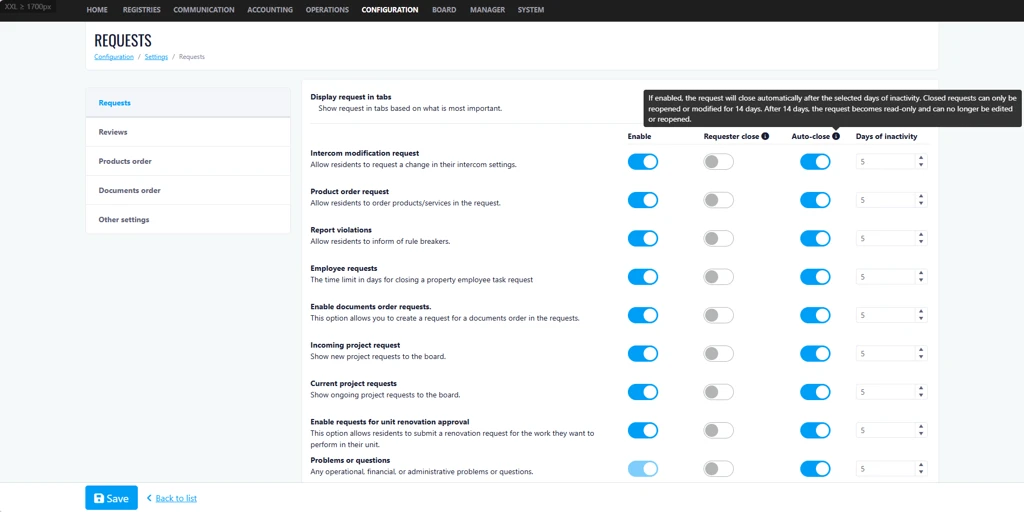
The Request closure popup has been updated to clearly communicate the 14-day reopening period.
How It Works
Automatic Closure Notifications
When the system automatically closes a Request, an email notification is sent to all participants associated with the Request. The notification informs them that the Request has been closed and advises them to create a new Request if they wish to continue the discussion.
14-Day Reopening Period
After a Request is closed, users can continue to:
-
Reopen the Request
-
Add replies
-
Update information
for a period of 14 days.
Permanent Closure
Once a Request has been closed for more than 14 days:
-
The Request becomes read-only.
-
Users can still view the Request and its complete history.
-
Users can no longer:
-
Add replies
-
Modify information
-
Reopen the Request
-
This behavior applies to Requests closed either manually by a user or automatically by the system.
Email Replies After Permanent Closure
If a user replies by email to a Request that has been closed for more than 14 days:
-
The Request remains closed.
-
The email reply is not added to the Request.
-
An automated email informs the user that the Request can no longer be updated.
-
The notification includes a link directing the user to create a new Request.
Updated Closure Popup
The Request closure confirmation popup now displays a message indicating that closed Requests can only be modified or reopened within 14 days. After that period, they become read-only and can no longer be edited or reopened.
Where to Find It
You can find this feature in: Requests Module
To access it:
-
Open a Request.
-
Close the Request or review an existing closed Request.
-
View the updated closure messaging and closure behavior.
Benefits
-
Improves transparency by notifying participants when Requests are automatically closed.
-
Prevents outdated Requests from being reopened months after closure.
-
Encourages better Request tracking by directing users to create a new Request when a new issue arises.
Important Notes
-
Closed Requests remain fully accessible for viewing after permanent closure.
-
The 14-day rule applies to both manually closed and automatically closed Requests.
-
Email replies to permanently closed Requests will not update the original Request.
Improvements
Restrict Invoice Assignment to Authorized Approvers
Overview
This release introduces approval permission validation for invoice assignments, designed to ensure that invoices can only be assigned to users who have the necessary access rights to approve and process them.
Past State
Previously, invoices could be assigned to any employee regardless of their approval permissions. This occasionally resulted in invoices being assigned to users who could not access or approve them, causing approval bottlenecks, delayed payments, supplier follow-ups, and, in some cases, late payment penalties.
Additionally, when an employee was archived, invoices awaiting approval could remain assigned to that employee without a streamlined reassignment process.
What's New
With this release:
-
Invoices can now only be assigned to users who have the required permissions to approve invoices.
-
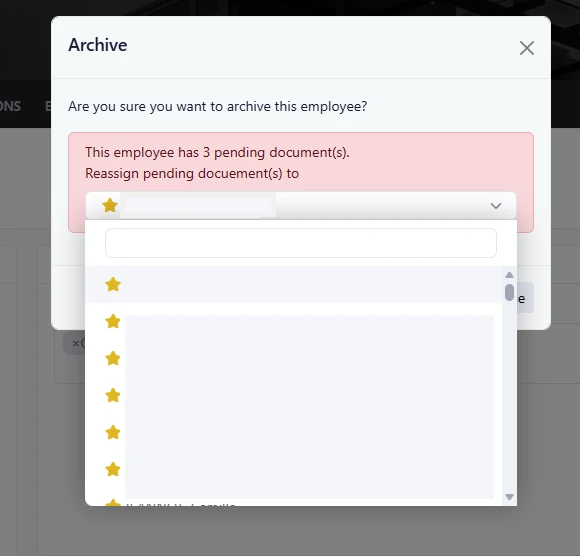
When an employee is archived, the system prompts administrators to reassign all pending invoices.
-
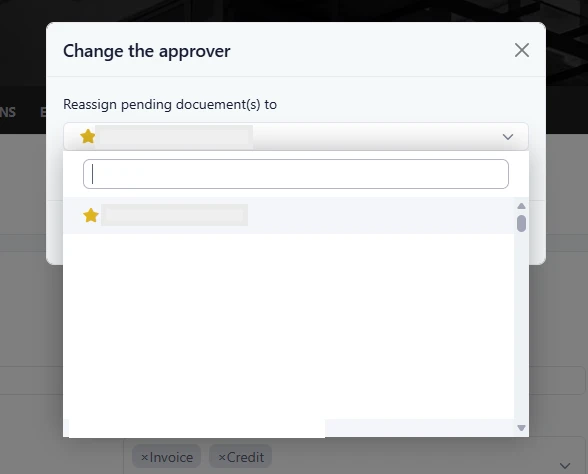
Pending invoices can be reassigned in bulk to either:
-
A specific user
-
A user role
-
These enhancements help ensure that invoices remain within the approval workflow and are not left unattended.
How It Works
Invoice Assignment Validation
When assigning an invoice for approval:
-
The system verifies whether the selected user has invoice approval permissions.
-
If the user does not have the required access, the assignment cannot be completed.
-
Only eligible approvers are allowed to receive invoices for approval.
Employee Archiving Process
When an employee is archived:
-
The system identifies any invoices currently awaiting action from that employee.
-
A reassignment prompt is displayed.
-
Administrators can choose to reassign all pending invoices to:
-
Another employee, or
-
A role responsible for invoice approvals.
-
-
The reassignment is completed in bulk, ensuring no invoices remain assigned to an inactive employee.
Where to Find It
You can find this feature in: Accounts Payable > Invoice Approval Workflow
To access it:
-
Open an invoice that requires approval.
-
Select an approver or assign the invoice.
-
The system will validate the approver's permissions before completing the assignment.
For invoice reassignment:
-
Navigate to Administration > Employees.
-
Archive an employee.
-
Select the user or role that should receive all pending invoices.
Benefits
-
Prevents invoices from being assigned to users who cannot approve them.
-
Reduces approval delays and improves payment processing efficiency.
-
Ensures pending invoices are automatically addressed when employees leave or become inactive.
Important Notes
-
Only users with invoice approval permissions can receive invoices for approval.
-
The reassignment prompt appears only when the archived employee has pending invoices.
-
Bulk reassignment helps maintain continuity in the approval process and prevents invoices from being overlooked.
Second Week Of The Month
Improvements
Configurable Request Generation for Advanced Maintenance Tasks
Overview
This release introduces configurable request generation lead time for recurring maintenance tasks in the Advanced Maintenance Board, allowing users to specify how many days before a scheduled occurrence a maintenance request should be automatically created.
Past State
Previously, recurring tasks created in the Advanced Maintenance Board automatically generated a request on the scheduled date. Users could not configure how far in advance requests should be created, unlike Basic Maintenance Logs where this option was already available.
What's New
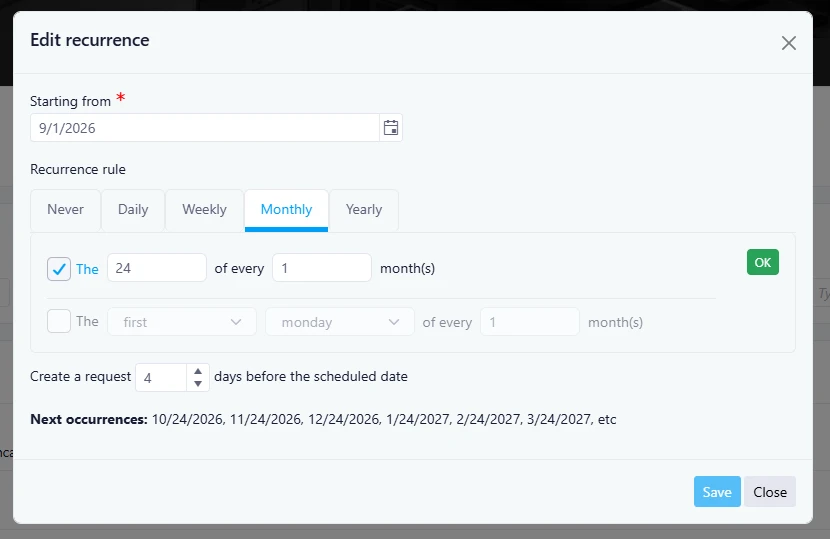
With this release, a new "Create a request X days before the scheduled date" option has been added to recurring tasks in the Advanced Maintenance Board.
Users can now define the number of days before a scheduled occurrence that a request should be automatically generated. By default, the value is set to 0 days, meaning the request is created on the scheduled date unless another value is specified.
How It Works
When configuring a recurring task, users can enter the number of days before the scheduled occurrence that a request should be created.
The request generation logic follows these rules:
-
Requests are generated when the scheduler reaches the configured lead time before the next eligible occurrence.
-
Once a request is generated, the system waits until a new eligible occurrence falls within the configured lead time window before creating another request.
-
Existing requests do not need to be closed for future requests to be generated.
-
The call for bids generation process remains unchanged.
Example
Assumptions:
-
September 1 is the first uncovered occurrence.
-
Lead time is set to 5 days.
-
Each generated request is saved before the next scheduler's execution.
|
Scheduler Date |
Scenario |
Result |
|---|---|---|
|
August 27 |
5 days before September 1 |
Request created |
|
August 28 |
4 days before September 1 |
No new request |
|
September 1 |
Scheduled occurrence date |
No new request |
|
September 26 |
5 days before October 1 |
Next request created |
Where to Find It
You can find this feature in: Advanced Maintenance Board > Tasks > Recurrence Settings
To access it:
-
Open the Advanced Maintenance Board.
-
Create or edit a recurring task.
-
Configure the recurrence rule and enter the desired value in Create a request X days before the scheduled date.
Benefits
-
Provides greater control over maintenance planning.
-
Allows maintenance teams to prepare and assign work ahead of scheduled dates.
-
Aligns recurring task behavior with the flexibility already available in Basic Maintenance Logs.
Important Notes
-
The default value is 0 days.
-
Existing recurring tasks without a configured value will continue generating requests on the scheduled date.
-
The Call for Bids generation mechanism is not impacted by this change.
-
Previously generated requests can remain open without preventing future request generation.
Improvements
Quick Lease Document Management
Overview
This release introduces Quick Lease Document Management, designed to help Rental Managers update and manage lease documents directly from the lease list without having to navigate through multiple tenant records.
Past State
Previously, managers had to open each tenant or owner group record individually to upload, update, or download lease documents. This process required navigating through multiple screens and repeating the same steps for every tenant, making lease management time-consuming and inefficient.
What's New
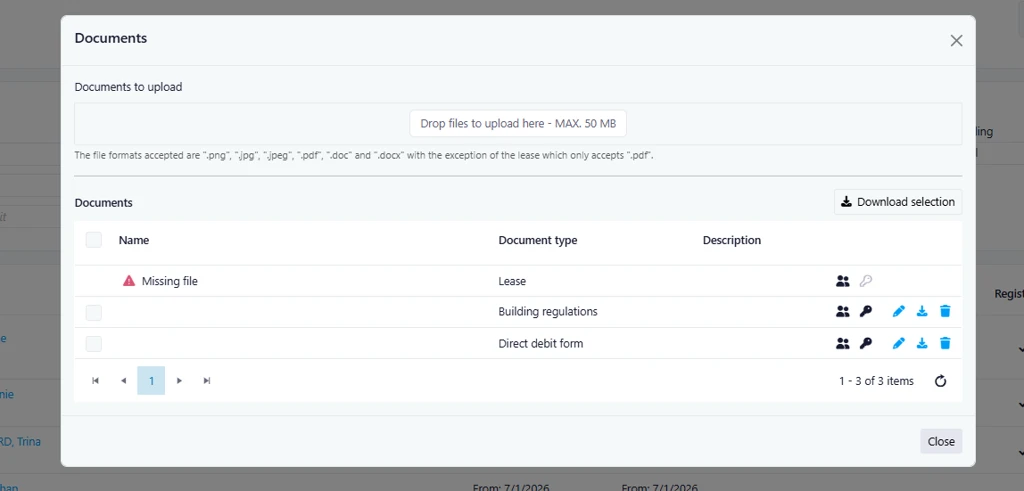
With this release, managers can now access lease document management directly from the lease list through a new Documents icon displayed beside each user.
The new feature provides a convenient popup window that allows users to:
-
Upload lease-related documents directly from the lease list.
-
Download existing documents.
-
Download multiple documents at once.
-
View documents according to their assigned permissions and access rights.
-
Use the same document management logic and validation already available within tenant and owner group records.
How It Works
-
Navigate to the Lease Management area.
-
Locate the tenant or user whose lease documents need to be updated.
-
Click the Documents icon displayed beside the user's name.
-
A popup window will open showing the available lease documents.
-
Upload new files, download individual documents, or download multiple documents simultaneously.
-
Save your changes to automatically update the associated lease and document records.
Where to Find It
You can find this feature in: Rental Management > Leases
To access it:
-
Open the Leases module.
-
Locate the desired tenant or lease record.
-
Click the Documents icon beside the user name.
Benefits
-
Saves time by eliminating the need to open each tenant record individually.
-
Simplifies document management with direct access from the lease list.
-
Improves efficiency through multi-file download capabilities.
-
Maintains existing document security and permission controls.
-
Provides a more streamlined workflow for Rental Managers.
Important Notes
-
Document permissions and visibility continue to follow the existing security rules.
-
Uploaded documents are synchronized with the corresponding tenant and owner group records.
-
Multi-file download functionality is now available directly from the document management popup.
New Feature:
Download Payment Notice
Overview
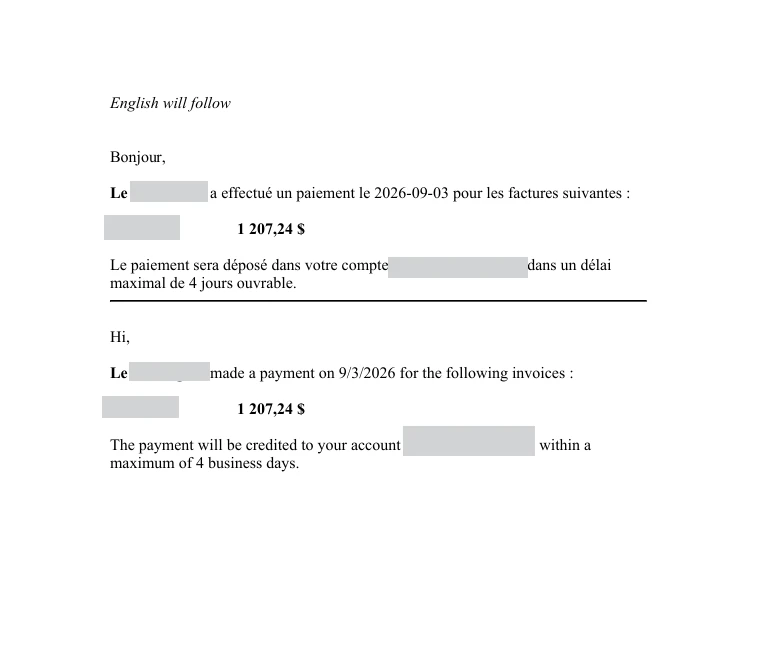
This release introduces a new Download Payment Notice feature, allowing users to download a PDF copy of a payment notice directly from the payment details page. The PDF contains the same information currently included in the payment notification email sent to suppliers.
Previous Experience
Previously, users could only resend a payment notice via email using the Resend button available in the payment details page. There was no option to download or retain a copy of the payment notice.
What's New
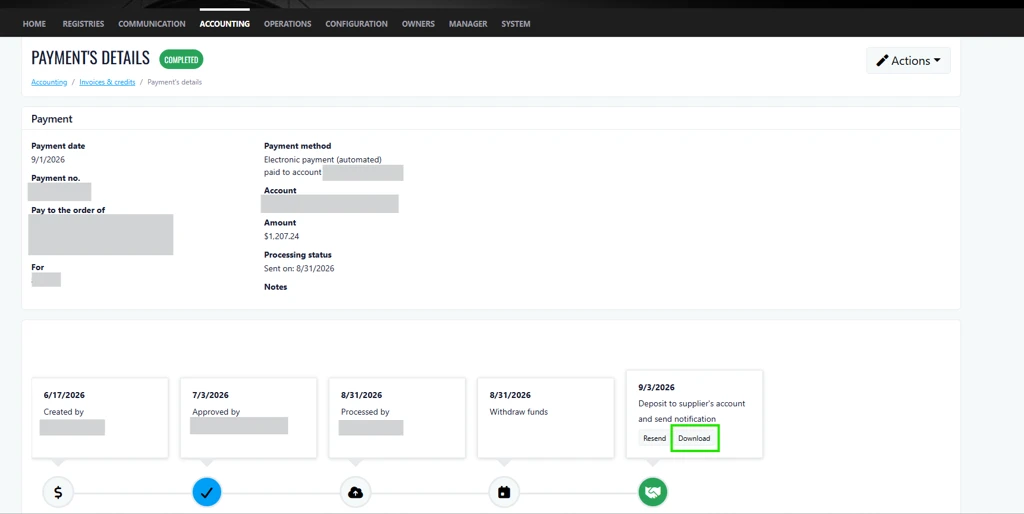
A new Download button has been added alongside the existing Resend button. This enhancement provides users with greater flexibility by allowing them to either resend the payment notice via email or download a PDF version for their records and communication needs.
How It Works
From the payment details page, simply click the Download button. A PDF file will be generated containing the same information displayed in the supplier payment notification email, making it easy to save, print, or share as required.
Where to Find It
Navigation:
Accounting > Invoices & Credit Notes > Payment Details
To access the feature:
-
From the main menu, navigate to Accounting and select Invoices & Credit Notes.
-
In the Invoices tab, select an invoice from the list and click Details.
-
In the Payments section, click the Payment Number (blue hyperlink).
-
Locate the Deposit to Supplier's Account and Send Notification section.
-
Click the new Download button to generate the payment notice PDF.
Benefits
-
Improved record keeping: Download and store payment notices for audit purposes, supplier inquiries, and internal documentation.
-
Enhanced flexibility: Choose between emailing the notice directly to the supplier or downloading a PDF copy for alternative distribution methods.
-
Faster access to payment information: Instantly retrieve and share payment details without needing to resend or search through email communications.
New Feature:
Automatic Budget Creation for New Fiscal Years
Overview
This release introduces Automatic Budget Creation, designed to improve the tracking of budgets that have not yet been adopted by automatically creating a new budget at the start of a new fiscal year.
Past State
Previously, users had to manually create a budget for the upcoming fiscal year. If a budget was not created, it could be difficult to identify properties that were still operating under the previous year's budget, making it harder to track non-adopted budgets.
What's New
With this release, the system automatically creates a new budget in "In Preparation" status when a new fiscal year begins, provided a budget has not already been created manually.
How It Works
-
When a new fiscal year opens, the system checks whether a budget already exists for the upcoming fiscal year.
-
If no budget exists, a new budget is automatically created with the status "In Preparation".
-
Budget values are pre-populated using the actual amounts from the previous fiscal year.
-
If a budget already exists, no duplicate budget is created.
-
Budgets are only created for properties with an active subscription.
Where to Find It
You can find this feature in: Budget Management
To access it:
-
Navigate to Financial Management.
-
Open Budgets.
-
Select the desired fiscal year to view the automatically generated budget.
Benefits
-
Improves visibility and tracking of budgets that have not yet been adopted.
-
Reduces manual effort by automatically creating upcoming fiscal year budgets.
-
Ensures budget preparation can begin immediately using prior-year actual data.
Important Notes
-
Automatic budget creation only occurs for properties with an active subscription.
-
Budgets are created with the status "In Preparation" and must still follow the normal review and adoption process.
-
No duplicate budget will be created if one already exists for the fiscal year.
Improvements
Improved Search Experience and Faster Page Performance
Overview
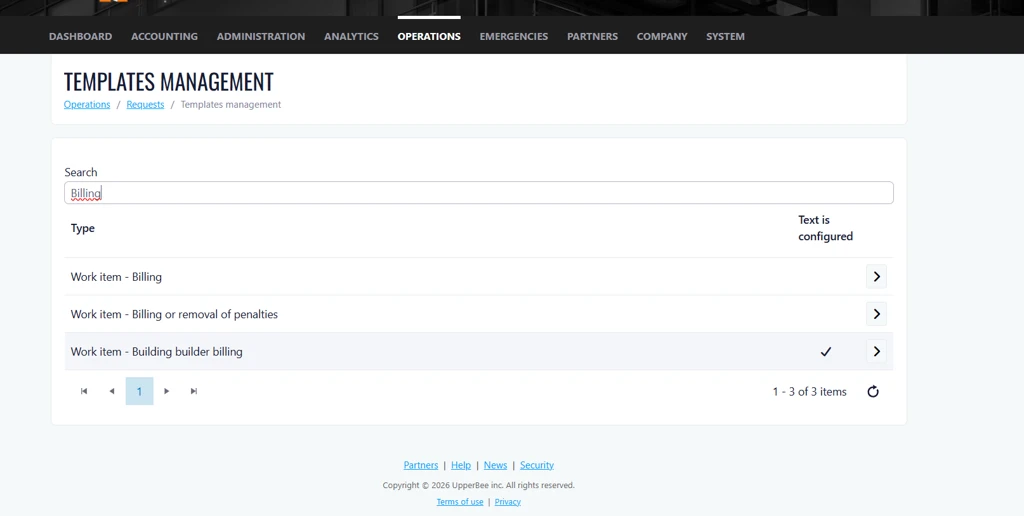
This release introduces a new search capability within Template Management, enabling users to quickly locate information and navigate more efficiently. In addition, significant performance improvements have been implemented to reduce page load times and enhance the overall user experience.
Previous Experience
Previously, users did not have the ability to search within Template Management, making it more time-consuming to find specific items. In addition, page load times could be slow, particularly when accessing large volumes of data.
What's New
With this release:
-
A new search bar has been added to help users quickly find templates and related information.
-
Page loading performance has been optimized, resulting in significantly faster load times.
How It Works
To search for a template, simply enter a keyword or phrase in the search bar. Matching results will be displayed automatically, helping you find the information you need faster.
Performance improvements are applied automatically, providing faster page loading without any additional configuration.
Where to Find It
Navigation Path:
Operations > Requests > Template Management
To access the feature:
-
Log in to your company account.
-
Navigate to Operations.
-
Select Requests.
-
From the Actions menu, choose Configure Work Item Templates.
-
Use the new search bar to quickly locate templates and enjoy improved page performance.
Benefits
-
Faster Access to Information
Quickly locate templates using the new search functionality, reducing the time spent manually browsing through lists. -
Improved Productivity
Users can complete tasks more efficiently with quicker navigation and reduced waiting time when accessing pages. -
Enhanced User Experience
Faster page performance and intuitive search capabilities create a smoother, more responsive application experience.
Improvements
Billable Hours Dashboard Enhancements ( BETA )
Overview
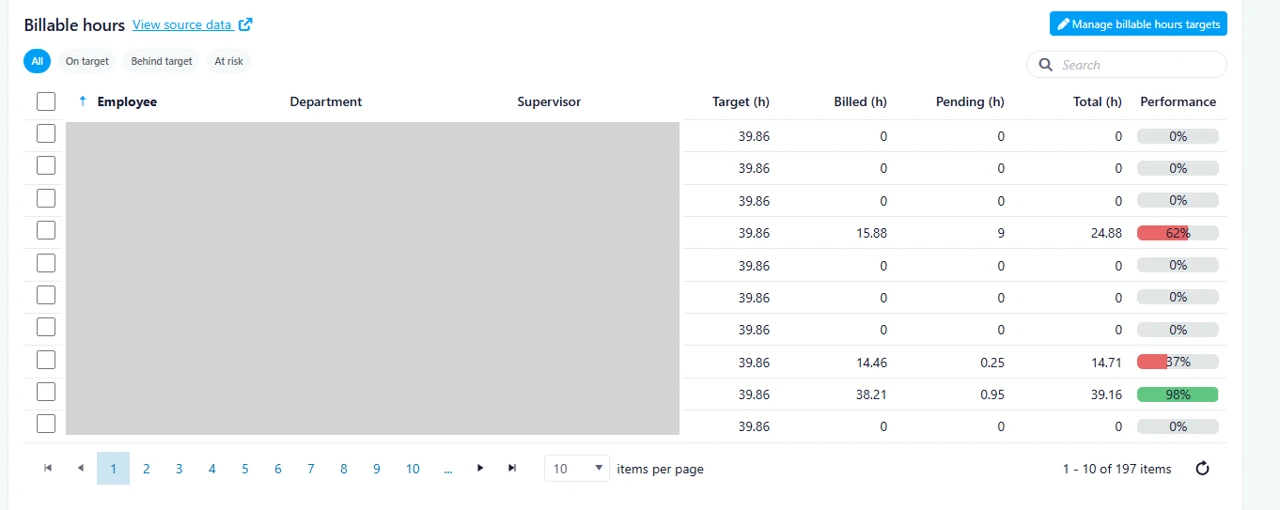
This release introduces significant enhancements to the Billable Hours Dashboard, including additional data columns and new summary table charts. These improvements provide greater visibility into billable hour performance, enhance reporting capabilities, and allow users to access key information more efficiently.
Previous Experience
Previously, the Billable Hours section displayed a limited number of columns, restricting the amount of information available directly within the dashboard view.
What's New
With this release, the Status column has been removed to optimize the layout and accommodate the following new columns:
-
Supervisor
-
Target
-
Billed
-
Pending
-
Total
In addition, users can now select the number of records displayed per page using the new Items Per Page dropdown.
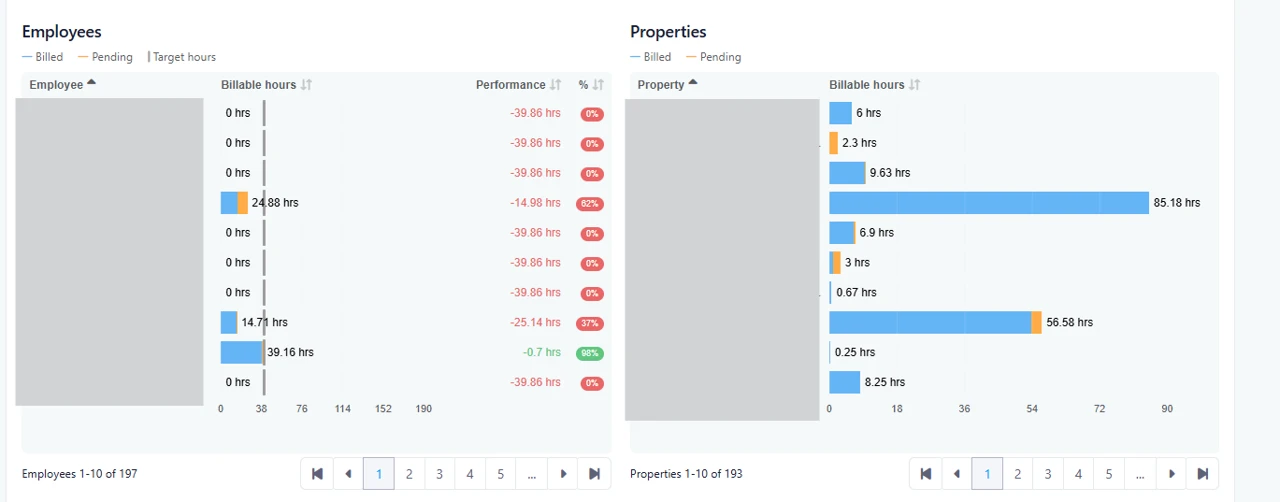
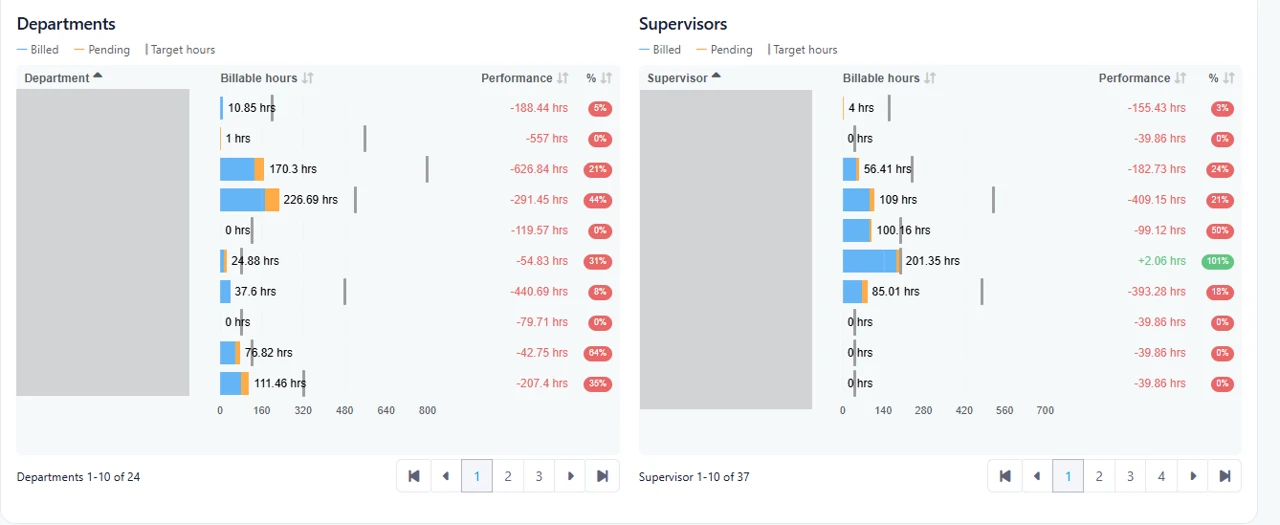
To further enhance reporting and analysis, three new summary table charts have been added:
-
Departments
-
Properties
-
Supervisors
These additions provide users with a more comprehensive view of billable hour data across different organizational dimensions.
How It Works
The overall workflow and user experience remain unchanged. Existing navigation and functionality continue to operate as before, with the added benefit of enhanced visibility and reporting options.
Where to Find It
This feature is available in:
Dashboard > Billable Hours
Note: The Billable Hours Dashboard must be enabled within the employee profile to access this feature.
To access:
-
Navigate to Dashboard from the main menu.
-
Select Billable Hours.
Benefits
-
Enhanced Visibility: View critical performance metrics such as targets, billed hours, pending hours, and totals directly from the Billable Hours dashboard.
-
Improved Analysis: New Department, Property, and Supervisor summary charts provide deeper insights into operational performance and resource allocation.
-
Greater Efficiency: The customizable Items Per Page option and expanded data view reduce the need for additional navigation, helping users find information more quickly.

Third Week Of The Month
Improvements
Bulk Import of Building Regulations via Excel
Overview
This release introduces the ability to import building regulations through a preformatted Excel file, designed to significantly reduce the time and effort required to integrate regulations into condominium portals.
Past State
Previously, regulations had to be entered manually, one regulation at a time. This process was time-consuming, increased the risk of transcription errors, and slowed down the setup of new buildings.
What's New
With this release, administrators can now import a complete set of regulations using a standardized Excel file generated from a regulation document. This greatly accelerates the creation and management of regulation registers within the portal.
How It Works
The new process allows regulations extracted from a source document to be structured in a standardized Excel format. Once the Excel file is prepared, users can import it directly into the regulations register, automatically creating all regulations, articles, and sections in the portal.
Where to Find It
You can find this feature in: Condominium Portal > Registries > By Laws
To Access It
Navigate to Registries - By Laws.
Select the Import Regulations option.
Upload the preformatted Excel file and complete the import.
Benefits
Significantly reduces the administrative effort required to create regulation registers.
Standardizes regulation imports across all condominium portals.
Minimizes manual entry and transcription errors.
Accelerates onboarding and setup of new properties.
Simplifies future regulation updates.

Important Notes
The Excel file must follow the required import template structure.
Imported regulations will respect the standardized format used by the portal.
Users should review imported content after completion to ensure accuracy.
Improvements
Enhanced Invoice Analysis Export
Overview
This release introduces additional request and claim tracking information in the Invoice Analysis export, designed to provide greater visibility into the status of billing-related requests and insurance claims directly within the exported data.
Past State
Previously, the Invoice Analysis export provided detailed billing and recharge item information but did not include request-related details. Users had to perform additional research within the application to identify the associated request, determine the request status, or verify the status of an insurance claim.
What's New
With this release, three new columns have been added to the DATA tab of the Invoice Analysis export:
-
Request Number
-
Request Status
-
Claim Status (displayed only when the associated request is a claim; otherwise left blank)
These new fields are appended to the end of the DATA worksheet and are automatically populated when a recharge item is associated with a billing project linked to a request.
How It Works
When generating the Invoice Analysis export, the system now retrieves the request information associated with each billable item through its related billing project.
For each exported line:
-
The associated request number is displayed.
-
The current request status is included.
-
If the request is linked to an insurance claim, the current claim status is shown.
-
If the request is not an insurance claim, the Claim Status column remains blank.
The export structure and existing data remain unchanged, with the new information simply added as additional columns at the end of the DATA worksheet.
Where to Find It
You can find this feature in: Recharge Items → Invoice Analysis Export
To access it:
-
Navigate to Recharge Items.
-
Open Invoice Analysis.
-
Generate or export the Invoice Analysis report.
-
Open the exported file and review the DATA worksheet.
Benefits
-
Improved visibility into billing-related requests and claims.
-
Reduced need to cross-reference information elsewhere in the application.
-
Easier reporting, auditing, and follow-up on billable activities.
Important Notes
-
The new columns are added at the end of the DATA worksheet.
-
The Claim Status field is populated only for claim-related requests.
-
Existing export data and calculations remain unchanged.
-
Export performance has been maintained to ensure report generation remains efficient.
Last Week Of The Month
Improvements
Application Header and Navigation Redesign
Overview
This release introduces a comprehensive redesign of the Application Header and Navigation Experience, designed to modernize the interface, improve navigation consistency, optimize screen space usage, and deliver a better experience across desktop and mobile devices.
Past State
Previously, the application used multiple implementations of page headers across Razor and React pages. Page titles were displayed separately from breadcrumb navigation, resulting in duplicated information and inconsistent layouts. Action buttons occupied more space, breadcrumb behavior varied between implementations, and several React pages did not support the same quick access functionality available in Razor pages. Mobile navigation also lacked consistency across different parts of the application.
What's New
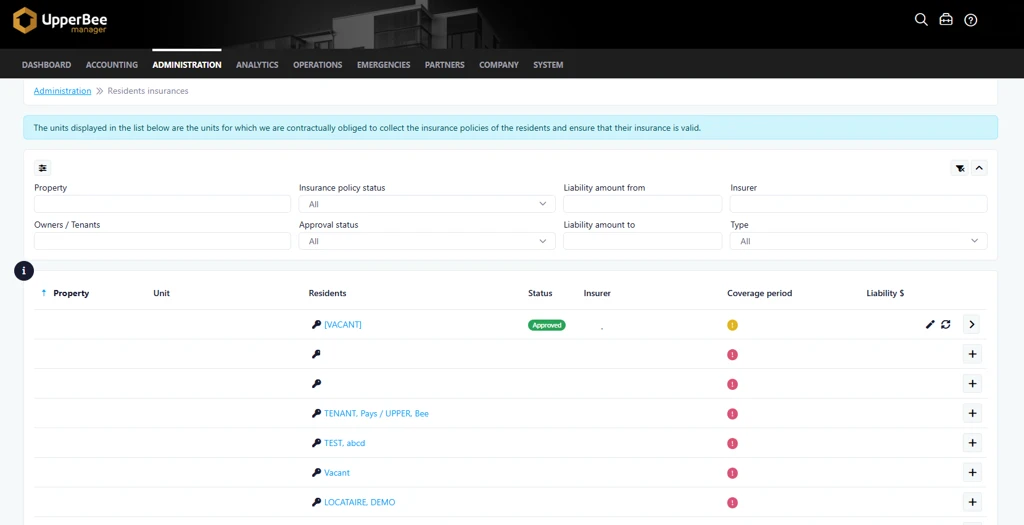
With this release, the application header has been redesigned and standardized across the platform.
Key improvements include:
-
Removal of the large page title from the header.
-
Integration of page titles directly into the breadcrumb navigation.
-
Redesigned breadcrumb styling with chevron separators for improved readability.
-
Breadcrumb and action buttons displayed together on a single row when applicable.
-
Reduced button sizes to create a cleaner and more compact layout.
-
Updated action menu icon from a magic wand to a pencil icon.
-
Improved title and breadcrumb presentation with support for additional configurable content adjacent to the page title.
-
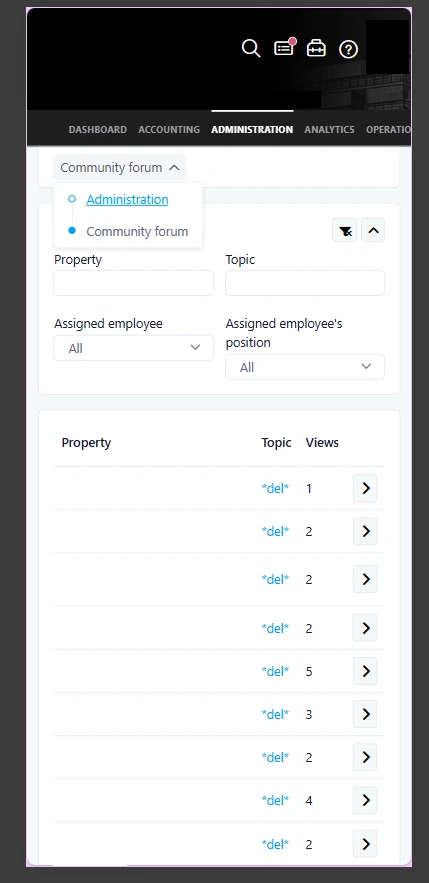
New responsive mobile header experience based on updated design specifications.
-
Consistent header implementation across Razor and React pages.
-
Introduction of the Quick Access functionality on React pages to align with the existing Razor experience.
-
Improved navigation behavior for long breadcrumb paths through automatic truncation and expandable navigation menus.
-
Standardization of header rendering across the application, reducing maintenance complexity and improving future scalability.
How It Works
The page header now uses a unified layout throughout the application.
Instead of displaying a separate page title and breadcrumb, the page title is now incorporated directly into the breadcrumb path. Action buttons appear alongside the breadcrumb when available, creating a more streamlined and efficient layout.
When breadcrumb paths become lengthy, intermediate navigation items may be collapsed into an expandable menu, making navigation easier while preserving screen space.
On mobile devices, the header automatically adapts to smaller screens. Actions, tools, and other contextual options remain accessible through the redesigned mobile navigation experience.
Additionally, React pages now support the same Quick Access behavior available in Razor pages. As users scroll beyond the page header, a sticky Quick Access button becomes available, providing convenient access to actions, tools, settings, shortcuts, and support resources.
Where to Find It
You can find this enhancement throughout the application on pages that use the standard page header and navigation components.
To access it:
-
Navigate to any module within the application.
-
Open a page containing breadcrumb navigation and page actions.
-
Observe the redesigned header, updated breadcrumb navigation, and responsive mobile experience.
Benefits
-
More modern and visually consistent user interface.
-
Better use of available screen space on desktop and mobile devices.
-
Faster access to navigation, actions, tools, and support resources.
Important Notes
-
This update affects pages across the application that use the standard page header.
-
Mobile layouts have been redesigned to provide a more consistent experience across devices.
-
Navigation functionality remains unchanged; only the presentation and accessibility of navigation elements have been improved.
-
Breadcrumb navigation may automatically collapse longer paths to improve readability and responsiveness.