
Update - 11/06/2026
Overview
This release introduces Vehicle QR Codes with Password Protection, designed to help residents, managers, and authorized security personnel quickly identify and validate vehicles while protecting resident privacy.
Past State
Previously, vehicle records did not support QR codes. Security personnel and managers had to manually search for vehicle information, and there was no secure way to associate a scannable QR code with a vehicle.
What’s New
With this release:
- A unique QR code is automatically generated for every vehicle.
- QR codes can be viewed and printed by residents and managers.
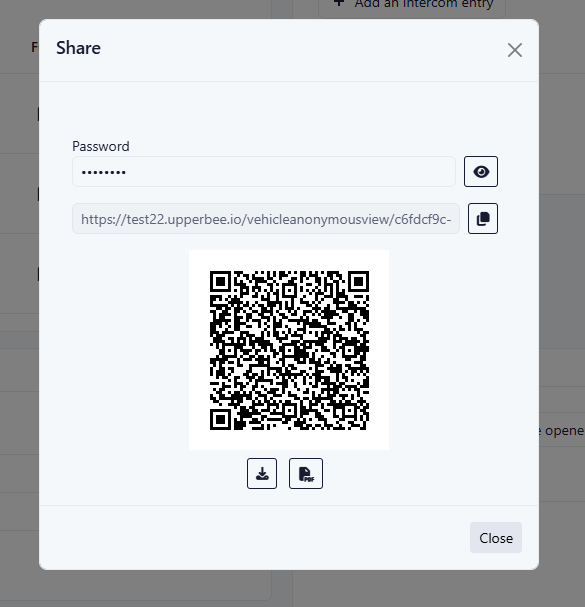
- Each QR code is protected by a vehicle-specific password.
- Authorized staff members (Property Managers, Building Managers, Security Guards, and Concierges) can access vehicle information without entering the password when logged into UpperBee with the required permissions.
- Vehicle records cannot be saved without a password.
- The Share option is only available when a password has been configured.
How It Works
Vehicle Creation and Password Validation
- When a vehicle is created, a QR code is automatically generated.
- A password is automatically generated for the vehicle.
- Residents can modify the password if needed.
- If a vehicle does not have a password, users are prevented from saving the record until a valid password is entered.
QR Code Access
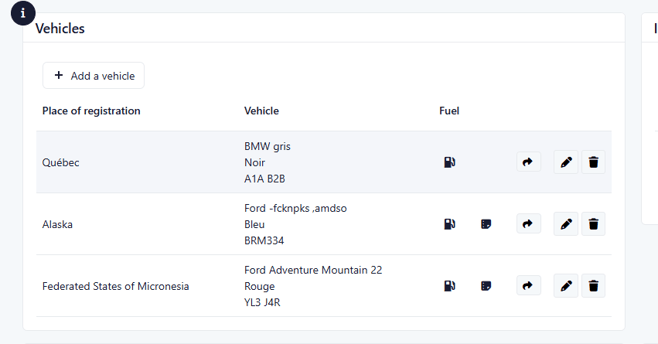
- Users can access the QR code from the Vehicle section.
- Selecting the Share/QR Code option opens a modal displaying the QR code.
- Users can print the QR code directly from the modal.
QR Code Scanning
When a QR code is scanned:
Authorized logged-in users
- Property Managers
- Building Managers
- Security Guards
- Concierges
Authorized logged-in users can view vehicle information immediately without entering the vehicle password.
All other users
All other users must enter the vehicle password before vehicle information is displayed.
Vehicle Information Displayed
Once access is granted, the following information may be displayed:
- Building name
- Resident/Owner name
- Contact information
- Unit information
- Vehicle make and model
- Parking space
- License plate number
Where to Find It
Resident Portal
- Vehicles
- My Profile → My Vehicles
Management Portal
- Condominium Vehicle Details
- Condominium Vehicle Edit
To Access It
To access it:
- Open the Vehicles section.
- Select a vehicle.
- Click the Share/QR Code icon.
Benefits
- Improves vehicle identification and parking validation.
- Protects resident information through password-controlled access.
- Allows authorized staff to access information efficiently during inspections.
- Simplifies QR code printing and distribution.
- Improves operational efficiency for parking management.
Important Notes
- This feature applies to both existing and newly created vehicles.
- A vehicle password is required before the QR code sharing functionality becomes available.
- Share actions remain hidden when no password is configured.
- Access for authenticated staff follows existing role and building permission rules.