
Zapier documentation
Actions
Create Rental Lead
Requirements:
Signed in user must
- Be assigned to a rental company, otherwise the Company dropdown will be empty and therefore, they will not be able to create a Zap for this action
-
Must have the permission Rental leads management → Manage for the company selected in the dropdown. Otherwise, the creation will be blocked.
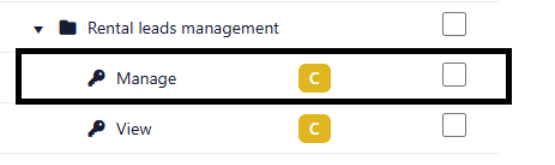
To edit the user's permissions, a manager must access the company's access roles management's page and then create or edit a role assigned to the user with the permission.
Action description:
When you create a Zap for this action, a new rental lead will be created for the rental company selected in the Zap with the information provided in the Zap. To view the rental leads created for the rental company, you must access the page through Administration -> Rental leads management.
Fields Specifications:
Full Name: Required if no values are entered for First Name and Last Name.
First Name & Last Name: Required if no values are entered for Full Name.
Email: Not required.
Mobile: Not required. If the field is filled, we expect a phone number without any special characters nor spaces.
Note: Not required.
Company: Required. This is the company for which the lead will be created.
Property: Not required. You must select a company first to select a property. If the field is filled, the lead will be created for the specified property.
Unit: Not required. You must select a property first to select a unit. If the field is filled, the lead will be created for the specified unit.
External Id: Not required. This field is used to send data related to the lead in a variety of our Triggers.
Send Notification Email To When Rental Lead Is Created: Not required. When filled, a notification email will be sent to the emails specified in the field. The emails must be entered in a single string separated with semi-colons. Ex: email1@email.com;email2@email.com;email3@email.com
Add Document
Requirements:
Signed in user must
- Be assigned to a company with the feature Document Reception activated, otherwise the Property dropdown will be empty and therefore, they will not be able to create a Zap for this action
-
Must have the permission Document submission and reception → Add in the company selected in the dropdown. Otherwise, the creation will be blocked.
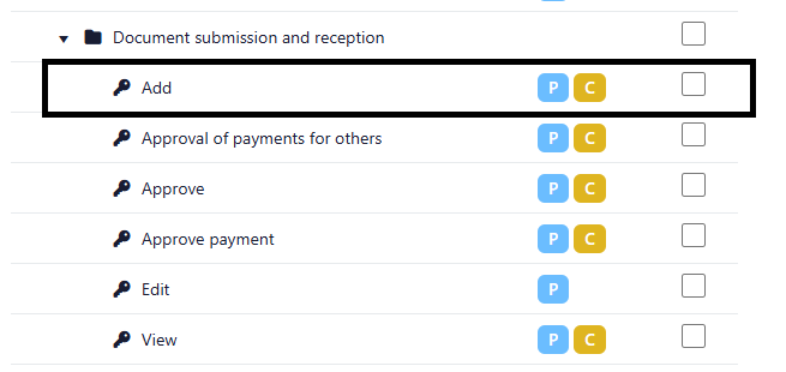
To edit the user's permissions, a manager must access the company's access roles management's page and then create or edit a role assigned to the user with the permission.
Documents can only be created for properties managed by companies that have the feature Document Reception activated.
Action description:
When you create a Zap for this action, a new document will be created for the property selected in the Zap with the information provided in the Zap. To view the documents created for the company, you must access the page through Accounting → Document Reception.
We recommend that you use this Action with a Trigger by GetMyInvoices.
Fields Specifications:
Property: Required. The document will be created for the property's managing company.
Document Name: Required. The document's name with the extension.
Document Url: Required. The document's public URL.
Triggers
External Rental Lead's Rental Inquiry Completed
Requirements:
Signed in user must
- Be assigned to a rental company, otherwise the Company dropdown will be empty and therefore, they will not be able to create a Zap for this Trigger
-
Must have the permission Pre-rental inquiry → Manage for the company selected in the dropdown. Otherwise, the subscription to the trigger will be blocked.
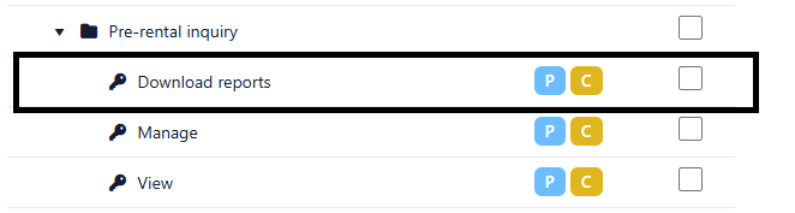
To edit the user's permissions, a manager must access the company's access roles management's page and then create or edit a role assigned to the user with the permission.
Trigger description:
When you subscribe to this trigger, you will be hooked to receive data from UpperBee regarding rental inquiries that are completed for rental leads with external ids (See Create Rental Lead).
It is imperative that the rental lead is created with our Action Create Rental Lead with a provided external id; all other completed rental inquiries will not send out data to your Zap.
Data that will be sent out to your Zap:
External Id: String. The external id you provided in Create Rental Lead.
Report Url: String. URL to download the report.
Credit Report Url: String. URL to download the credit report (if a credit inquiry was conducted for the lead).
External Rental Lead's Lease Signed
Requirements:
Signed in user must
- Be assigned to a rental company, otherwise the Company dropdown will be empty and therefore, they will not be able to create a Zap for this Trigger
-
Must have the permission Tenant → View for the company selected in the dropdown. Otherwise, the subscription to the trigger will be blocked.
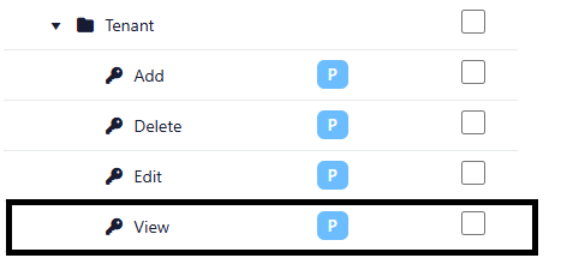
To edit the user's permissions, a manager must access the company's access roles management's page and then create or edit a role assigned to the user with the permission.
Trigger description:
When you subscribe to this trigger, you will be hooked to receive data from UpperBee regarding leases that are signed for rental leads with external ids (See Create Rental Lead).
It is imperative that the rental lead is created with our Action Create Rental Lead with a provided external id; all other leases created will not send out data to your Zap.
Lease data that will be sent out to your Zap:
External Id: String. The external id you provided in Create Rental Lead.
Unit Address: String. Full address of the lease.
Address Line 1: String. Address line 1 of the lease's address.
Address Line 2: String. Address line 2 of the lease's address.
City: String. City of the lease's address.
State/Province: String. State or province of the lease's address.
Zip/Postal Code String. Zip or postal code of the lease's address.
Tenants: The tenants' full names separated by semi-colons if there are multiple tenants for a single lease.
Rent Amount: String. The amount of the rent with the taxes and additional fees applied.
Lease StartDate Iso8601: Date. The lease's start date in UTC formatted in Iso8601.
Lease EndDate Iso8601: Date. The lease's end date in UTC formatted in Iso8601.
Status: String. The status of the lease. Value will be "Signed" for this trigger.
External Rental Lead's Lease Ended
Requirements:
Signed in user must
- Be assigned to a rental company, otherwise the Company dropdown will be empty and therefore, they will not be able to create a Zap for this Trigger
-
Must have the permission Tenant → View for the company selected in the dropdown. Otherwise, the subscription to the trigger will be blocked.
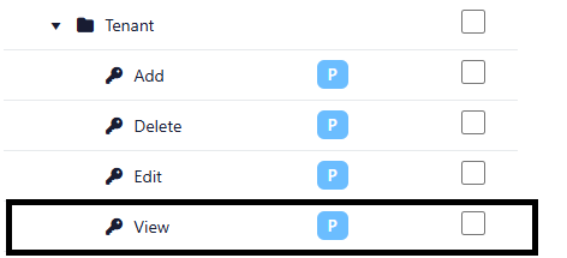
To edit the user's permissions, a manager must access the company's access roles management's page and then create or edit a role assigned to the user with the permission.
Trigger description:
When you subscribe to this trigger, you will be hooked to receive data from UpperBee regarding existing leases that are ended for rental leads with external ids (See Create Rental Lead).
It is imperative that the rental lead is created with our Action Create Rental Lead with a provided external id; all other ended leases will not send out data to your Zap.
Lease data that will be sent out to your Zap:
External Id: String. The external id you provided in Create Rental Lead.
Unit Address: String. Full address of the lease.
Address Line 1: String. Address line 1 of the lease's address.
Address Line 2: String. Address line 2 of the lease's address.
City: String. City of the lease's address.
State/Province: String. State or province of the lease's address.
Zip/Postal Code String. Zip or postal code of the lease's address.
Tenants: The tenants' full names separated by semi-colons if there are multiple tenants for a single lease.
Rent Amount: String. The amount of the rent with the taxes and additional fees applied.
Lease StartDate Iso8601: Date. The lease's start date in UTC formatted in Iso8601.
Lease EndDate Iso8601: Date. The lease's end date in UTC formatted in Iso8601.
Status: String. The status of the lease. Value will be "Ended" for this trigger.
External Rental Lead's Lease Renewal Status Changed
Requirements:
Signed in user must
- Be assigned to a rental company, otherwise the Company dropdown will be empty and therefore, they will not be able to create a Zap for this Trigger
-
Must have the permission Tenant → View for the company selected in the dropdown. Otherwise, the subscription to the trigger to the trigger will be blocked.
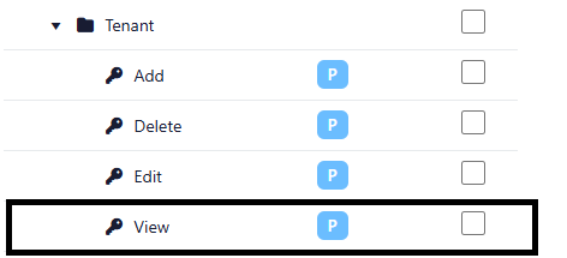
To edit the user's permissions, a manager must access the company's access roles management's page and then create or edit a role assigned to the user with the permission.
Trigger description:
When you subscribe to this trigger, you will be hooked to receive data from UpperBee regarding existing leases for which the lease renewal status changes for rental leads with external ids (See Create Rental Lead).
It is imperative that the rental lead is created with our Action Create Rental Lead with a provided external id; all other leases with changes to the lease renewal status will not send out data to your Zap.
Lease data that will be sent out to your Zap:
External Id: String. The external id you provided in Create Rental Lead.
Unit Address: String. Full address of the lease.
Address Line 1: String. Address line 1 of the lease's address.
Address Line 2: String. Address line 2 of the lease's address.
City: String. City of the lease's address.
State/Province: String. State or province of the lease's address.
Zip/Postal Code String. Zip or postal code of the lease's address.
Tenants: The tenants' full names separated by semi-colons if there are multiple tenants for a single lease.
Rent Amount: String. The amount of the rent with the taxes and additional fees applied.
Lease StartDate Iso8601: Date. The lease's start date in UTC formatted in Iso8601.
Lease EndDate Iso8601: Date. The lease's end date in UTC formatted in Iso8601.
Status: String. The status of the lease renewal. Values can be "Accepted", "Rejected", "Canceled", "InDispute" or "AutoRenewed".
External Rental Lead's Lease Cancelled
Requirements
Signed in user must:
- Be assigned to a rental company, otherwise the Company dropdown will be empty and therefore, they will not be able to create a Zap for this Trigger
-
Must have the permission Tenant → View for the company selected in the dropdown. Otherwise, the subscription to the trigger will be blocked.
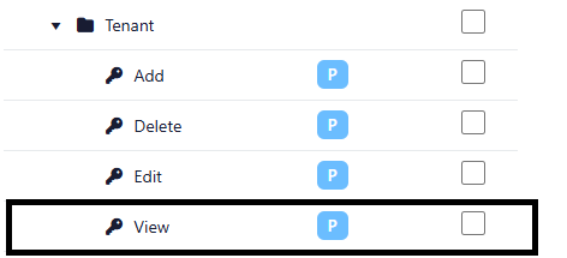
To edit the user's permissions, a manager must access the company's access roles management's page and then create or edit a role assigned to the user with the permission.
Trigger description
When you subscribe to this trigger, you will be hooked to receive data from UpperBee regarding existing leases that are cancelled for rental leads with external ids (See Create Rental Lead).
It is imperative that the rental lead is created with our Action Create Rental Lead with a provided external id; all other cancelled leases will not send out data to your Zap.
Lease data that will be sent out to your Zap
- External Id: String. The external id you provided in Create Rental Lead.
- Unit Address: String. Full address of the lease.
- Address Line 1: String. Address line 1 of the lease's address.
- Address Line 2: String. Address line 2 of the lease's address.
- City: String. City of the lease's address.
- State/Province: String. State or province of the lease's address.
- Zip/Postal Code: String. Zip or postal code of the lease's address.
- Tenants: The tenants' full names separated by semi-colons if there are multiple tenants for a single lease.
- Rent Amount: String. The amount of the rent with the taxes and additional fees applied.
- Lease StartDate Iso8601: Date. The lease's start date in UTC formatted in Iso8601.
- Lease EndDate Iso8601: Date. The lease's end date in UTC formatted in Iso8601.
- Status: String. The status of the lease. Value will be "Cancelled" for this trigger.
- Cancelled Reason: String. The lease's cancellation reason.
External Rental Lead's Lease Sent For Signature
Requirements:
Signed in user must
- Be assigned to a rental company, otherwise the Company dropdown will be empty and
therefore, they will not be able to create a Zap for this Trigger
- Must have the permission Tenant → View for the company selected in the dropdown.
Otherwise, the subscription to the trigger will be blocked.
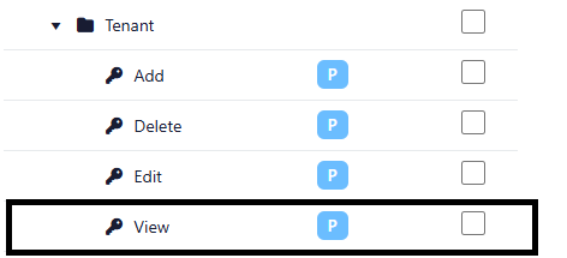
To edit the user's permissions, a manager must access the company's access roles management's page and then create or edit a role assigned to the user with the permission.
Trigger description:
When you subscribe to this trigger, you will be hooked to receive data from UpperBee regarding existing leases that are sent for electronic signature for rental leads with external ids (See Create Rental Lead).
It is imperative that the rental lead is created with our Action Create Rental Lead with a provided external id; all other leases sent for signature will not send out data to your Zap.
Lease data that will be sent out to your Zap:
- External Id: String. The external id you provided in Create Rental Lead.
- Unit Address: String. Full address of the lease.
- Address Line 1: String. Address line 1 of the lease's address.
- Address Line 2: String. Address line 2 of the lease's address.
- City: String. City of the lease's address.
- State/Province: String. State or province of the lease's address.
- Zip/Postal Code: String. Zip or postal code of the lease's address.
- Tenants: The tenants' full names separated by semi-colons if there are multiple tenants for a single lease.
- Rent Amount: String. The amount of the rent with the taxes and additional fees applied.
- Lease StartDate Iso8601: Date. The lease's start date in UTC formatted in Iso8601.
- Lease EndDate Iso8601: Date. The lease's end date in UTC formatted in Iso8601.
- Status: String. The status of the lease. Value will be "SentForSignature" for this trigger.
External Rental Lead's Rental Inquiry Initiated
Requirements:
Signed in user must
- Be assigned to a rental company; otherwise, the Company dropdown will be empty, and they will not be able to create a Zap for this Trigger.
- Must have the permission pre-rental inquiry → Manage for the company selected in the dropdown. Otherwise, the subscription to the trigger will be blocked.
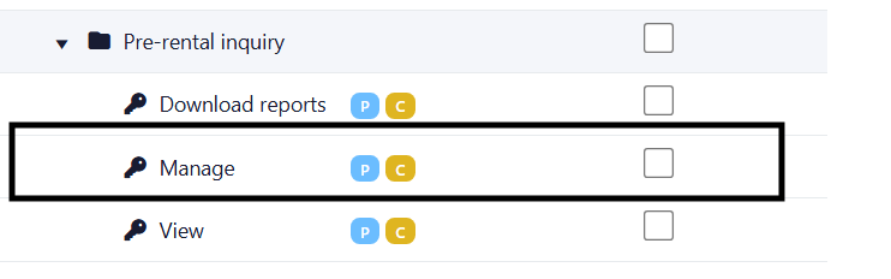
To edit the user's permissions, a manager must access the company's access roles management page and then create or edit a role assigned to the user with the permission.
Trigger description:
When you subscribe to this trigger, you will receive data from UpperBee when a rental inquiry reaches Step 1 and is initiated for a rental lead.
This trigger only sends data when all required conditions are met:
- The rental inquiry is linked to a rental lead.
- The rental lead has a valid External Id.
- The rental lead is not archived.
It is imperative that the rental lead is created or updated with an External Id (see Create Rental Lead). Rental inquiries without an External Id on the linked rental lead will not send data to your Zap.
Data that will be sent to your Zap:
- External Id: String. The external id provided on the rental lead.
- Status: String. The status value for this trigger. Value will be Initiated.
- Name: String. Full name of the rental lead.
- Unit Address: String. Full address of the unit.
- Address Line 1: String. Address line 1 of the unit address.
- Address Line 2: String. Address line 2 of the unit address.
- City: String. City of the unit address.
- State/Province: String. State or province of the unit address.
- Country: String. Country of the unit address.
- Postal Code: String. Postal or zip code of the unit address.
- Rent Amount: String. Rent amount formatted with two decimals (example: 1500.00).
External Rental Lead's Rental Inquiry Approbation Status Changed
Requirements:
Signed in user must
- Be assigned to a rental company, otherwise the Company dropdown will be empty and
therefore, they will not be able to create a Zap for this Trigger
- Must have the permission Pre-rental inquiry -> Manage for the company selected in the
dropdown. Otherwise, the subscription to the trigger will be blocked.
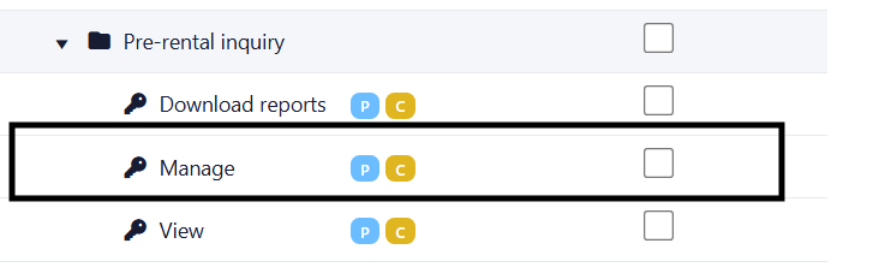
To edit the user's permissions, a manager must access the company's access roles management
page and then create or edit a role assigned to the user with the permission.
Trigger description:
When you subscribe to this trigger, you will receive data from UpperBee when a rental inquiry's
approbation status changes to Approved, Rejected, or Cancelled.
This trigger only sends data when all required conditions are met:
- The rental inquiry is linked to a rental lead.
- The rental lead has a valid External Id.
- The rental lead is not archived.
It is imperative that the rental lead is created or updated with an External Id (see Create Rental
Lead). Rental inquiries without an External Id on the linked rental lead will not send data to
your Zap.
Data that will be sent to your Zap:
- External Id: String. The external id provided on the rental lead.
- Approbation Status: String. The approbation status of the rental inquiry. Values can be "Approved", "Rejected", or "Cancelled".
- Rejection Reason: String. The reason for rejection. Empty if the status is Approved or Cancelled.
- Names: String. Full names of all persons investigated in the rental inquiry, separated by
semicolons if there are multiple persons (example: John Doe;Jane Smith).
- Unit Address: String. Full address of the unit.
- Address Line 1: String. Address line 1 of the unit address.
- Address Line 2: String. Address line 2 of the unit address.
- City: String. City of the unit address.
- State/Province: String. State or province of the unit address.
- Country: String. Country of the unit address.
- Postal Code: String. Postal or zip code of the unit address.
- Rent Amount: String. Rent amount formatted with two decimals (example: 1500.00).
External Rental Lead's Lease Assigned
Requirements:
Signed in user must
- Be assigned to a rental company; otherwise, the Company dropdown will be empty, and they will not be able to create a Zap for this Trigger.
- Must have the permission Tenant → Edit for the company selected in the dropdown. Otherwise, the subscription to the trigger will be blocked.
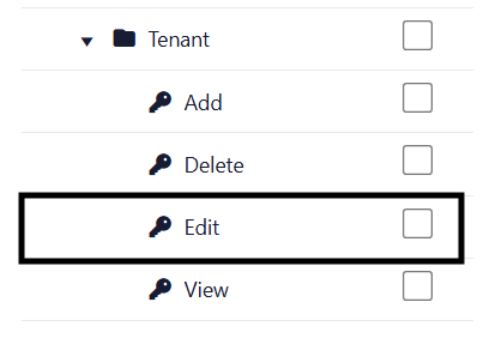
To edit the user's permissions, a manager must access the company's access roles management page and then create or edit a role assigned to the user with the permission.
Trigger description:
When you subscribe to this trigger, you will receive data from UpperBee when a lease is assigned and is linked to a rental lead.
This trigger only sends data when all required conditions are met:
- The lease is linked to a rental lead.
- The rental lead has a valid External Id.
- The rental lead is not archived.
It is imperative that the rental lead is created or updated with an External Id (see Create Rental Lead). Leases without an External Id on the linked rental lead will not send data to your Zap.
Data that will be sent to your Zap:
New Lease:
- External Id: String. The external id you provided in Create Rental Lead.
- Unit Address: String. Full address of the lease.
- Address Line 1: String. Address line 1 of the lease's address.
- Address Line 2: String. Address line 2 of the lease's address.
- City: String. City of the lease's address.
- State/Province: String. State or province of the lease's address.
- Zip/Postal Code: String. Zip or postal code of the lease's address.
- Tenants: The tenants' full names separated by semi-colons if there are multiple tenants for a single lease.
- Rent Amount: String. The amount of the rent with the taxes and additional fees applied.
- Lease StartDate Iso8601: Date. The lease's start date in UTC formatted in Iso8601.
- Lease EndDate Iso8601: Date. The lease's end date in UTC formatted in Iso8601.
Previous Lease:
- External Id: String. The external id you provided in Create Rental Lead.
- Unit Address: String. Full address of the lease.
- Address Line 1: String. Address line 1 of the lease's address.
- Address Line 2: String. Address line 2 of the lease's address.
- City: String. City of the lease's address.
- State/Province: String. State or province of the lease's address.
- Zip/Postal Code: String. Zip or postal code of the lease's address.
- Tenants: The tenants' full names separated by semi-colons if there are multiple tenants for a single lease.
- Rent Amount: String. The amount of the rent with the taxes and additional fees applied.
- Lease StartDate Iso8601: Date. The lease's start date in UTC formatted in Iso8601.
- Lease EndDate Iso8601: Date. The lease's end date in UTC formatted in Iso8601.
Status: String. The status value for this trigger. Value will be Assigned.
On the UpperBee platform
External Identifier Field
The External Identifier field allows you to associate a unique external reference with your rental leads. This identifier is particularly useful for integrating rental leads with external systems and tracking them across different platforms. The external identifier can be added while creating a rental lead or can be modified while editing one.
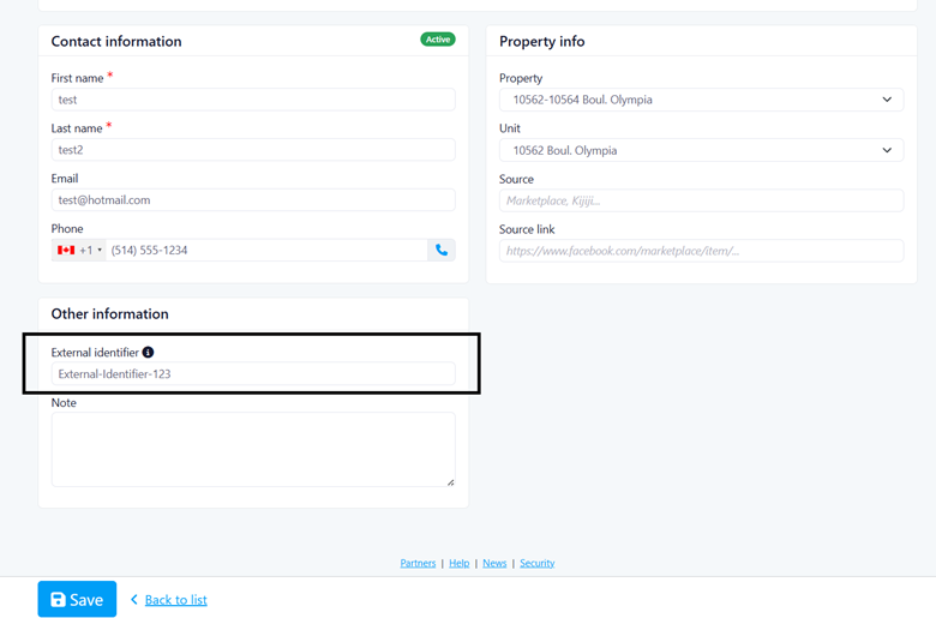
Key Features:
- Maximum length of 50 characters
- Optional field that can be left empty if not needed
- Displays in the rental lead detail page when provided
- Used in Zapier triggers to identify specific rental leads
Usage: When creating or editing a rental lead, you can provide an External Id that will be stored with the lead and displayed in the contact information section. This identifier is essential for Zapier integrations as it allows triggers to send data related to specific leads back to your external systems.
Rental Inquiry Linking
UpperBee now supports linking existing rental inquiries to rental leads, creating a seamless connection between prospect management and the inquiry process.
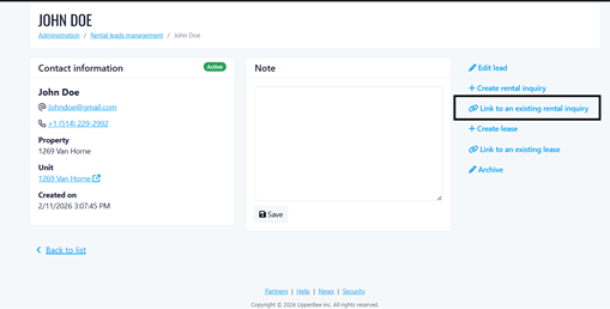
Available Actions:
- Link to Existing Inquiry: Connect a rental lead to an existing pre-rental inquiry for the same property and unit
- Create New Inquiry: Generate a new pre-rental inquiry directly from the rental lead with pre-populated information
- View Linked Inquiry: Navigate directly to the associated rental inquiry
- Unlink Inquiry: Remove the connection between the rental lead and inquiry
Permissions:
- User must have permission Rental Inquiry -> Manage and Rental Inquiry -> View to see the options and do the actions
Requirements for Linking:
- Rental lead must be in Active status
- Rental lead must have both property and unit assigned
- Target inquiry must be for the same property and unit
- Inquiry cannot already be linked to a different rental lead
Automatic Linking: When linking a rental inquiry that is already associated with a lease, the lease will also be automatically linked to the rental lead, ensuring data consistency across all related records.
Lease Linking
The lease linking functionality enables property managers to connect rental leads with existing or new leases, providing complete visibility into the tenant lifecycle.
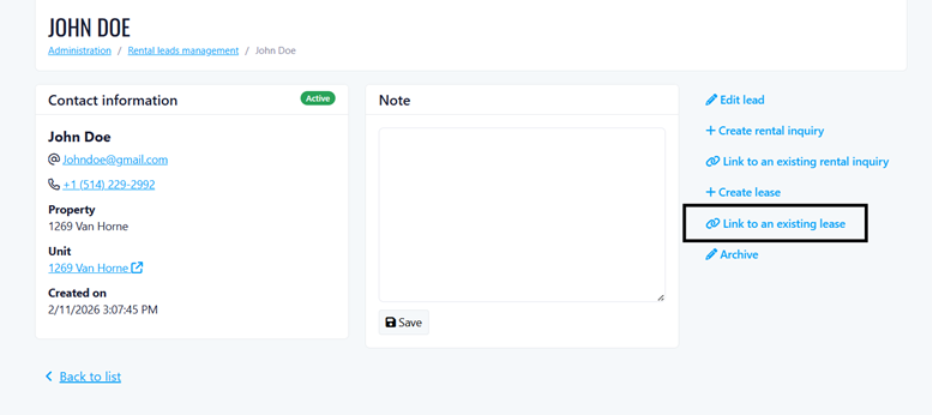
Available Actions:
- Link to Existing Lease: Connect a rental lead to an existing current or upcoming lease
- Create New Lease: Generate a new lease directly from the rental lead with tenant information pre-populated
- View Linked Lease: Navigate directly to the associated lease
- Unlink Lease: Remove the connection between the rental lead and lease
Permissions:
- User must have permission Tenant -> Add, Tenant -> View and Tenant -> Edit to see the options and do the actions
Requirements for Linking:
- Rental lead must be in Active status
- Rental lead must have both property and unit assigned
- Target lease must have Current or Upcoming status
- Lease cannot already be linked to a different rental lead
- If both rental inquiry and lease are linked, they must be consistent with each other
Data Protection:
- When a rental lead is linked to either a rental inquiry or lease, the property and unit fields become read-only in the edit form to maintain data integrity and prevent conflicts
- If we have a rental lead linked to a lease and we try to link a rental inquiry that is linked to a different lease, the system will return an error and block the linking.
Rental Inquiry Approval
Once a rental inquiry is completed, it can be approved or rejected from the inquiry's detail page.
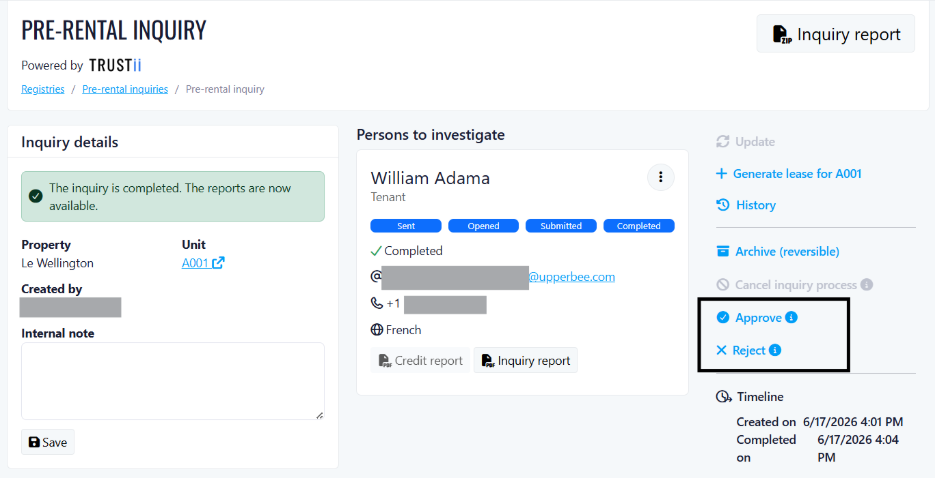
Available Actions:
Note: These actions are irreversible.
- Approve: Mark the rental inquiry as approved. A confirmation dialog is displayed before the action is saved.
- Reject: Mark the rental inquiry as rejected. A modal window prompts the user to enter a rejection reason before the action is saved.
Conditions to access the actions:
When these conditions are not met, the buttons are greyed out and cannot be clicked.
- The inquiry is not cancelled.
- The inquiry is completed (all persons under inquiry have a Completed status).
- The inquiry has not yet been approved or rejected.
Permissions:
- Must have the permission pre-rental inquiry → Manage to see the options and do the actions.
Reject — Field Specifications:
- Rejection Reason: Required. Cannot exceed 500 characters.
Timeline:
The Timeline section of the detail page is updated to reflect the decision taken.
- Approved inquiry: the timeline displays the name of the person who approved the inquiry along with the date and time of the approval.
- Rejected inquiry: the timeline displays the name of the person who rejected the inquiry, the date and time of the rejection, and a Rejection Reason link. Clicking this link opens a modal window showing the reason entered at the time of rejection.
History:
- Approval and rejection actions are recorded in the inquiry's history. Each entry indicates the name of the user who performed the action.