
Feature Update - 11/18/2026
Overview
This release introduces redesigned Summary Pages, offering a more intuitive and flexible way to navigate and access the different sections of your platform.
With an updated interface, multiple viewing options, and improved navigation, users can find the information and actions they need more easily.
Past State
Previously, Summary Pages displayed information using a single layout, making it less flexible for users who preferred a different way of browsing available sections and features.
Navigating between sections and finding specific items could also require additional effort.
What's New
With this release, Summary Pages feature a redesigned interface with the following improvements:
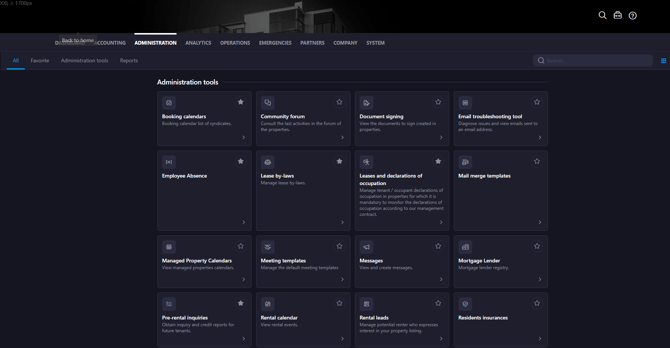
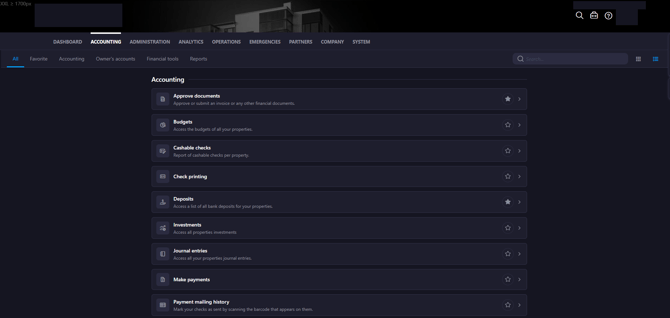
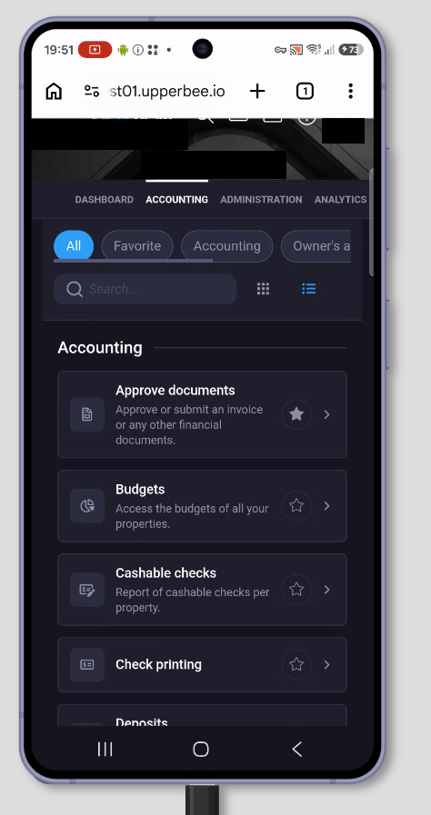
- Two viewing modes: Switch between List and Cards views based on your preference.
- Section tabs: Navigate directly between individual sections.
- All tab: View all available items in one place when multiple sections are available.
- Favourites tab: Quickly access your favourite items.
- Search bar: Find specific items more easily with client-side search and filtering.
- Persistent viewing preference: Your selected viewing mode can be remembered as you navigate between pages.
- Improved navigation: A more intuitive layout makes it easier to browse available options and access their associated actions.
How It Works
- Open a Summary Page.
- Use the viewing toggle to switch between List and Cards views.
- Select a section tab to browse its available items, or use the All tab to see everything in one place.
- Select the Favourites tab to access your saved favourite items.
- Use the search bar to find specific items. Your search remains active when switching between viewing modes or tabs.
- Click an item to perform its associated action, such as opening a page, displaying a popup, or downloading a document.
- Use the favourite icon to add or remove items from your favourites.
When a Summary Page contains only one section, the tabs are simplified to display the section name and Favourites, without an All tab.
Where to Find It
You can find this feature on the Summary Pages throughout the platform.
To access it:
- Navigate to the desired Summary Page.
- Choose your preferred viewing mode (List or Cards).
- Browse the sections using the tabs or search for a specific item.
Benefits
- Greater flexibility: Choose the viewing layout that best suits your browsing preferences.
- Faster navigation: Easily switch between sections and access your favourite items.
- Improved usability: Find specific features and actions more quickly through the redesigned interface and search functionality.
Important Notes
- Existing actions and functionalities remain available through the redesigned interface.
- The update focuses on reorganizing and improving access to existing features; no new features are introduced as part of this release.
- The redesigned Summary Pages are available for both Condo and Rental environments.